
The facilitator role
Facilitator is a built-in role in LEMA Chat. An Owner or Admin assigns it to a member. It sits between Member and Admin: a Facilitator can do everything a Member can, plus the things on this page, and less than an Admin.
Owners and Admins can do everything a Facilitator can. This guide says "Facilitator and above" for that group.
What the role adds
On top of what every Member can do, a Facilitator can:
- Control a live session: pause the agents, mute a person or an agent, move a stalled turn on, and open a breakout. See Session controls.
- Whisper to the agents in a chat. See Whisper.
- Manage Topics: create and edit Topics and who can see them. See Running interviews.
- Look after widgets: close, reopen and reconfigure any widget, not only the ones they made.
- Author courses and communities.
- Manage the workspace's Applications list.
- Manage the shared whiteboard library.
- Set a member's Founder role and Position. See Founders and positions.
- Rename the left-nav sections, such as Topics, Brains or Courses, from the section header. Other names are renamed by an Admin in workspace settings.
- Change the programme switches in workspace settings: Findings during interviews, Founder answers in Topics (see Onboarding) and Founders and the company Brain (see Reading private chats). Open them from Workspace settings in the F role badge at the bottom of the left sidebar, or from Admin > Workspace. The page shows only the settings a Facilitator can change. See Who can change what.
What every member can already do
These are not Facilitator powers. Anyone who can post in a chat can:
- Run widgets: polls, word clouds, sortboxes and the rest.
- Start a SideChat. A workspace can switch this off for plain Members; Facilitators and above keep it.
- Capture a finding, accept it and send it to a Brain they can write to.
- Resolve and close a chat.
- Convene a deliberation with
/council,/council-ncor/board.
Session controls
Open the Session actions sheet from the participants control at the top of the chat. For a Facilitator its tooltip reads Facilitator & session actions. The same controls run as /facilitator commands in the message bar.
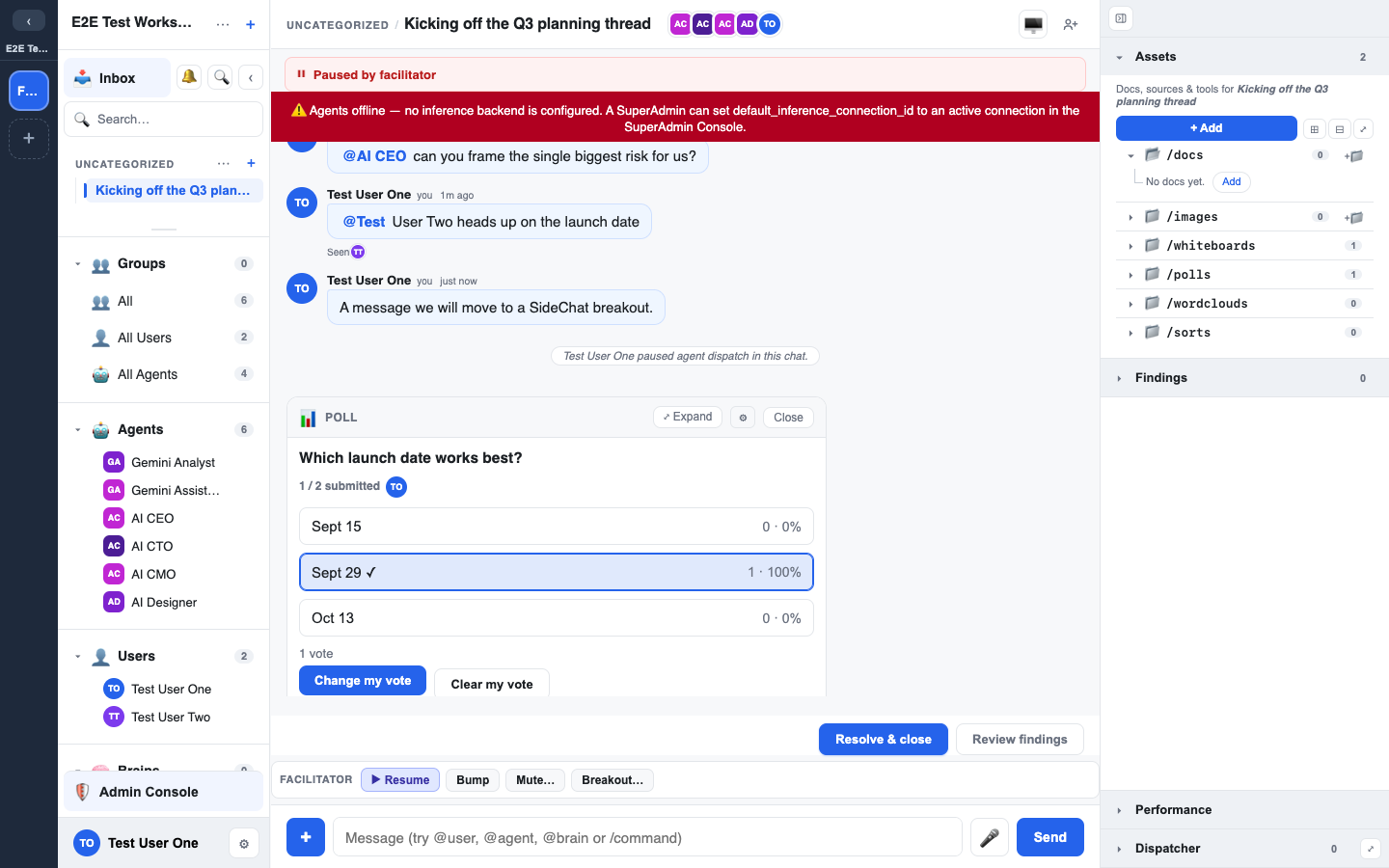
| Control | Command | What it does |
|---|---|---|
| Pause / Resume | /facilitator pause, /facilitator resume | Stops the agents answering in this chat until you resume. People can still post. A Paused by Facilitator banner shows at the top, and a note in the chat names who paused it. |
| Bump | /facilitator bump | Ends the agent turn that is running, so the conversation can move on. |
| Mute… | /facilitator mute <agent or @user> | A muted person cannot post in this chat and is told so. A muted agent is not asked to answer. The muted list shows under the controls; press the ✕ on a name to unmute. |
| Breakout… | /facilitator breakout <name> | Opens one SideChat off this chat with that name. It does not move anyone into it. A breakout cannot be opened from inside a breakout. |
Every one of these posts a note in the chat saying who did it.
A dot on the participants control shows that the chat is paused or that someone is muted.
In an interview the same sheet also has Instruct…, Whisper… and Speak…. See Running interviews.
Founders and positions
Each member has two separate attributes. Neither changes the other, and neither changes the member's role.
- Founder: marks the person as a founder of the company the workspace is for. Founders record the founder decisions at programme checkpoints and review the company context.
- Position: the person's job title, on one line, up to 80 characters. It is shown beside their name and changes nothing else.
Nobody is a Founder by rule. A person is a Founder only when:
- they created the workspace,
- they accepted a founder invite, or
- an Owner, an Admin or a Facilitator switched Founder on for them.
Only a person's own account can be a Founder. A guest, an agent or an automation identity cannot.
Set Founder or Position
There are two places:
- On the onboarding site: open Setup and find Founders and positions. Each member has a Founder switch and a Position field with Save.
- In the Admin console (Owners and Admins): open Users, press Edit on a member, and use Position and the Founder tick.
You can switch Founder on or off for yourself. Every change is recorded in the audit log.
Every member can edit their own Position.
A Founder shows a Founder badge in the Users list.
Founder invites
An invite can make the person a Founder when they accept it. Tick Founder on the invite.
- A founder invite is addressed to one email address.
- It is single-use.
- The tick is offered only to people who can set Founder.
- The invite shows as Founder in the pending rows of the Users page.
- If the person who created the invite has lost the right to set Founder by the time it is accepted, the invitee joins without the Founder role.
Removing a Founder during a decision
Founders decide separately at a checkpoint, and each one's decision stays hidden from the other Founders until all of them have decided. Removing a Founder can therefore complete the set and reveal the decisions.
When that would happen, you are asked to confirm first:
- The confirmation names each checkpoint whose decisions will be revealed.
- Remove and reveal removes the Founder role and reveals them.
- Cancel leaves everything as it was.
See Programme weeks and checkpoints for how the decisions work.
Reading private chats
By default, Facilitators and above can see and act in members' direct messages and their private chats with an agent, on the member's behalf. Everything a Facilitator does there is shown under the Facilitator's own name. Only an Owner can permanently delete such a chat.
- Facilitator access to private chats in Workspace settings switches this for the workspace. It is on by default, only a super admin can change it, and every change is audited. Use platform default puts it back to the platform's value.
- Off, those chats are sealed to their owners and say that only the owner can see them. Sealed interviews stay visible to Facilitators either way.
- A workspace can show members a notice on those chats: "Facilitators can read this chat." It is off by default and has no effect while Facilitator access is off.
- Private (sealed) interviews follow their own rules; see Interview deadlines and reconciling answers.
Founders and the company Brain
Founders write to the company Brain, under Founders and the company Brain in workspace settings, decides whether Founders save findings straight into the company Brain. Facilitators and Admins can change it.
- On (default): a Founder accepts a finding into the company Brain themselves.
- Off: a Founder's findings stay proposed in the chat until a Facilitator accepts them.
- Facilitators and above can always read and write the company Brain, from the role alone, whether or not they joined the onboarding site.
- With this off, a Facilitator can only see those findings to accept them while Facilitator access to private chats is on. Both settings sections warn when that combination is set.
Where roles are assigned
Roles, including Facilitator, are assigned to members in the Admin console. See Groups & roles.