
Running interviews
This page is for Facilitators who set up and run interviews. For what the interviewee sees, see Taking an interview. For the checklist, the matrix and sending Answers to a Brain, see Checklists & interviews.
Where to configure an interview
There is no separate prompt for each interview. To give the interviewer instructions for every interview on a checklist, use Interviewer instructions at the top of that checklist.
| Setting | What it does | Who can edit | Where |
|---|---|---|---|
| Topic and its group | The channel the interviews live in, and where it sits in the left bar. | Facilitators | Topics page → Create Topic. See Create a Topic. |
| Checklist, sections and items | What every interview should find out. Details says what counts as done. | Anyone who can edit the checklist | Topics page → Checklist. Add an item for new items. Edit details on an item, or on a section header, changes its Details. |
| Checklist order | The interviewer asks required items first, then optional ones, each in checklist order. Sections go in the order of their first item. | Anyone who can edit the checklist | In the checklist, drag the ⠿ handle on an item or a section header, or use ↑ / ↓. Items can move within a section or to another one. |
| Interviewer instructions, whole checklist | How to choose and word questions. Used on every turn of every interview on the checklist. | Facilitators and above | Interviewer instructions, at the top of the checklist. |
| Interviewer instructions, one section | The same, only while the interviewer is on an item in that section. | Facilitators and above | Edit details on the section header → Instructions for the interviewer. |
| Interviewer instructions, one item | The same, only while the interviewer is on that item. | Facilitators and above | Edit details on the item → Instructions for the interviewer on this item. |
| Interviewer's system prompt | How the interviewer agent behaves in every interview it runs, in every Topic. | Admins | Admin → Agents → Edit on the interviewer's row → System prompt. |
| Interviewer's name | The name it introduces itself with. | Admins | Admin → Agents → Edit → Name. See Check who does the interviewing. |
| Welcome notice | A checklist item whose Details tell the interviewer to open with a quoted message is sent as the first message, word for word, and never asked again. | Anyone who can edit the checklist | The item's Details, for example: open with exactly this: "Welcome ...". |
| Voice and phone | Spoken interviews, the AI and recording notice, phone numbers. | Admins | See Voice interviews. |
| Invites and reminders | Who gets an interview, and nudging them. | Facilitators | The Topic's interviews page. See Invite people and Bump. |
| Findings during interviews | Whether findings show while an interview is running (findings_during_interviews, off by default). | Facilitators and above | Admin → Workspace → Findings during interviews. |
| Founder answers in Topics | Whether founders' answers in a Topic conversation are graded (topic_conversation_grading, on by default). | Facilitators and above | Admin → Workspace → Founder answers in Topics. |
The SuperAdmin can also tune these platform settings in Admin → Settings:
| Setting key | What it does | Default |
|---|---|---|
interview_guidance_max_chars | The most characters one piece of interviewer instructions may hold. 0 turns interviewer instructions off. | 1500 |
interview_grading_timeout_s | How long grading an answer may hold up the reply, in seconds. | 8 |
topic_conversation_grading_debounce_s | Quiet seconds before a burst of Topic messages is graded together. 0 grades each message. | 0 |
interview_opener_minutes_per_item | Minutes per required item in the opener's "about N minutes". | 5 |
interview_disclosure_template | The interviewer's opening line. | "Hi, I'm {agent}, your AI {interview} assistant for {workspace}." |
interview_recording_notice | The recording notice on voice sessions. | "This voice session is recorded. ..." |
interview_live_window_minutes | How recently the participant must have spoken for the interview to show as live. | 10 |
interview_pause_timeout_minutes | How long a paused interview waits before it is closed with gaps. | 1440 |
Topics
A Topic is a channel whose conversations are interviews. Each Topic has one checklist: the things every interview in it should find out. A Topic holds many conversations: each participant has their own interview in it, and there can be group discussions too.
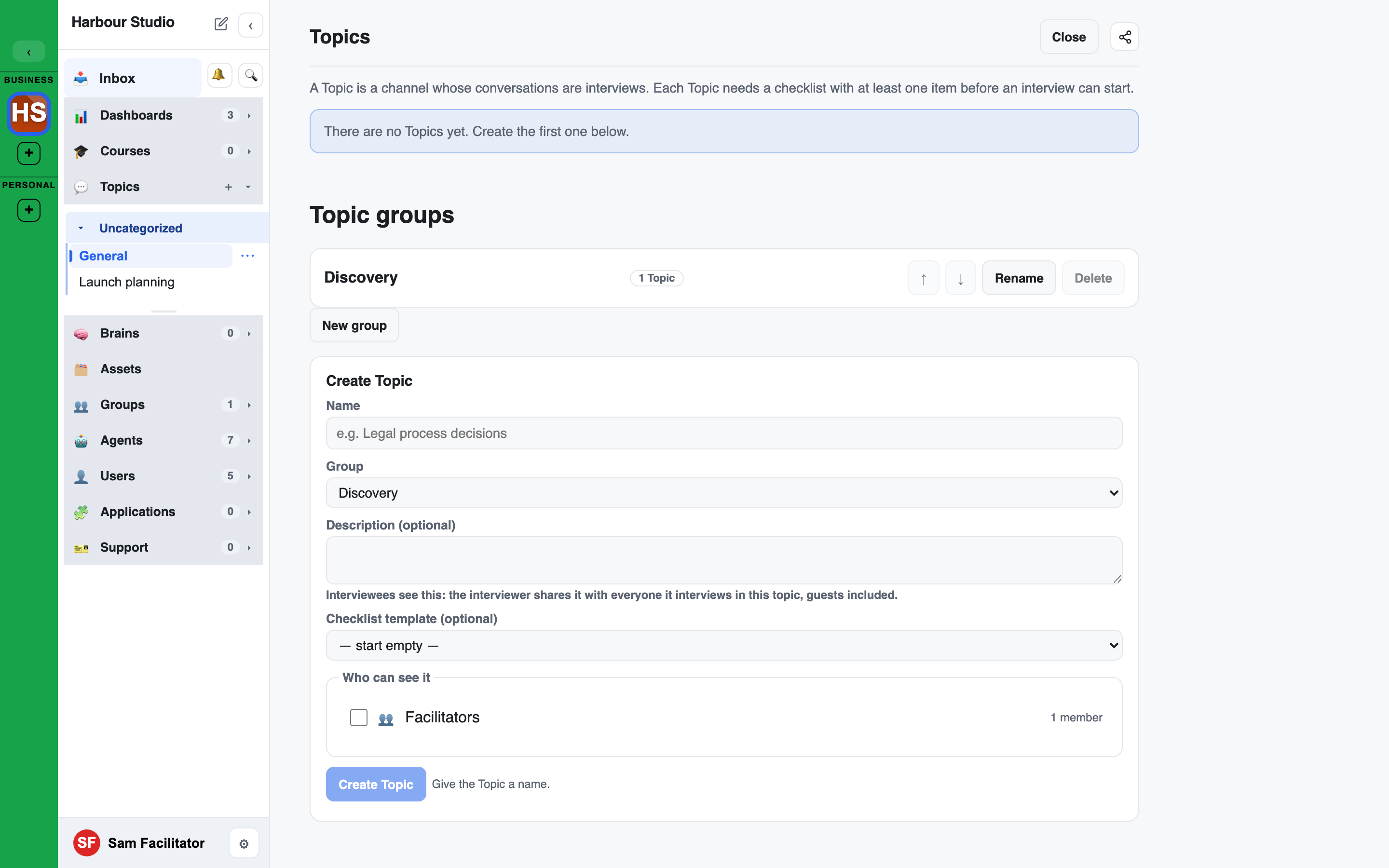
See them: Topics sit in the left bar's Topics section, grouped under their Topic group. The section's … menu has Browse topics, which opens the Topics page.
Interviews have their own section: a Topic with an interviewer agent or a checklist, and a programme week, is an Interview. By default Interviews show in their own Interviews section, above Topics, with their own filter and expand toggles; archived Interviews get their own Archived group inside it. The Topics page lists them under an Interviews heading, then the other Topics under Topics. To keep them in the Topics section, see the
interviews_nav_sectionworkspace setting in Workspace settings; each person can override it in Settings → Navigation.+ New interview: the + on the Interviews section opens the Create Topic form on the Topics page. The new Topic starts with the workspace's interviewer agent already set, so it is an Interview from the start, and it opens on its Setup tab.
The Topics +: the + on the Topics section (and the command palette's new Topic) opens the simple New Topic form: Title, an optional Goal and optional Members. The Topic opens in its chat, not on Setup: a Topic is a conversation; an Interview is set up separately.
A Topic's checklist outside an interview shows progress only. The interviewer's controls (Defer, and confirming, editing or retracting an answer) appear only inside an interview.
Create one: on the Topics page, fill in Create Topic:
- Name.
- Group: one of the workspace's Topic groups, or + New group….
- Description (optional). Interviewees see it: the interviewer shares it with everyone it interviews in the Topic, guests included.
- Who can see it: at least one group, including one you belong to.
Creating a Topic here needs the Facilitator role. After you create it, the Topic's Setup tab opens.
Turn an existing channel into one: open the channel's ⋯ menu and choose Make this a Topic…. On a Topic, the same menu says Topic checklist.
A Topic's page
Open a Topic to see:
- Participants, with a count, and each person's interview and its state.
- Add participants. See Adding participants to a Topic.
- Invite external person. See People outside the workspace.
- New interview group: name a group and pick the people in it. A group has its own discussion (Start group discussion, then Open discussion), its own deadline and Reconcile answers.
- Topic deadline. See Interview deadlines and reconciling answers.
- Topic checklist, collapsed, with its item count.
- All chats in this Topic.
A member who has one interview in the Topic is taken straight into it.
Sessions, Workbench and Setup
Facilitators, admins and SuperAdmins see three tabs on an Interview: Sessions (the people and their sessions), Workbench and Setup. Members never see them. In the left nav, the Setup gear shows only on Interviews, never on a plain Topic.
Setup has: Participants (with Add participants, which opens the Sessions tab's add panel), Interview agent, How to interview (the interviewer instructions), Interview Context, During the chat (whether Findings show) and the Checklist.
Reset session and New session
Each person on the Sessions tab has Reset session. In the left nav, the + on a person's row in an Interview does the same thing (New session for the person). Both ask twice:
- Start a new session for the person? The interviewer starts it fresh, with clean checklist answers.
- Move the old session to the Trash? OK moves it to the workspace Trash (restorable until the Trash clears it); Cancel archives it (kept, restorable).
Nothing is deleted straight away. Resetting needs the Facilitator role or above, and is audited.
One count
Every interview surface (the live chip, the progress ring, the Progress panel, the left-nav bar, the Workbench and the Review page) reads the same per-item status, so they all show the same count. A drafted answer covers an item; an item the interviewee declined shows as Deferred.
The checklist
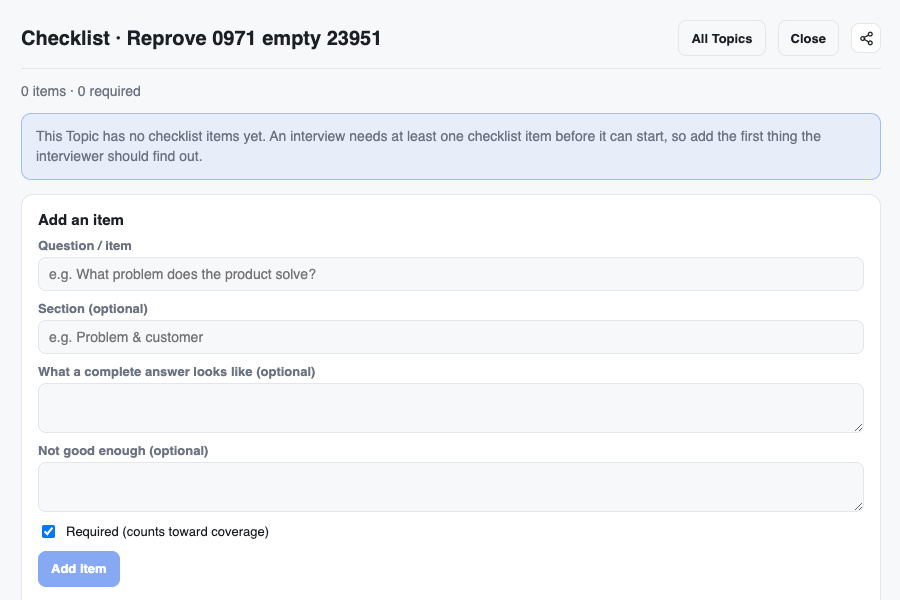
Open a Topic's Checklist to add items. Each item has:
- Question / item: what the interviewer should find out.
- Section (optional): to group items.
- Details (what counts as done) and Doesn't count (optional): the interviewer uses these to judge whether an answer covers the item.
- Required (counts toward coverage): ticked by default. Required items decide whether an interview is complete. Untick it for a nice-to-have.
Facilitators and above also set, per item:
- Can be skipped: turn it off for an item that must be answered, such as consent.
- Who sees this: Everyone, Facilitators only or Participants. The interviewer never asks a Facilitators-only item.
- Instructions for the interviewer on this item (Facilitators and above). It is not shown on the checklist.
Edit details on an item, or on a section header, changes its Details.
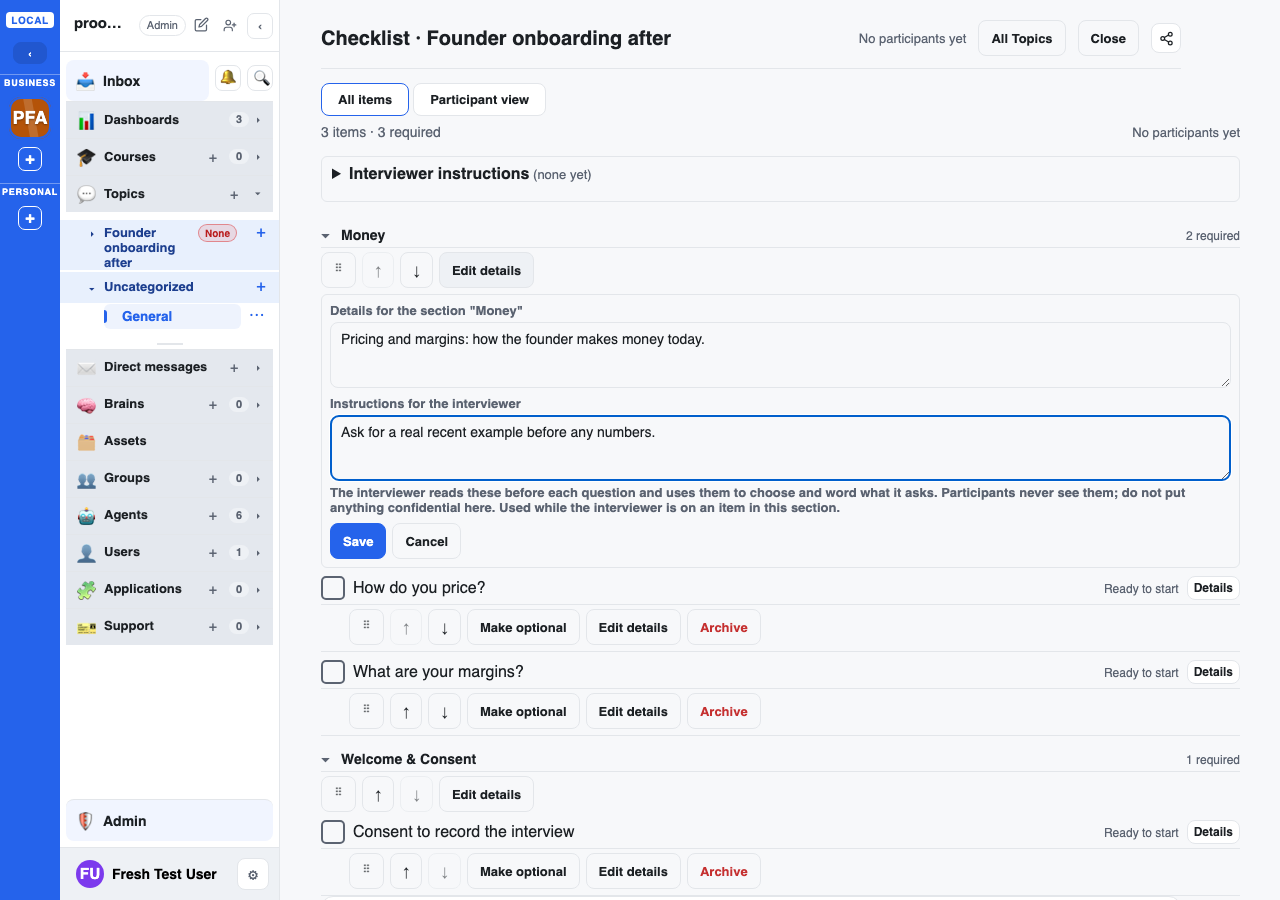
To change the order, drag the ⠿ handle on an item or a section header, or use ↑ and ↓. Items can move to another section. The interviewer asks the required items first, then the optional ones, each in this order.
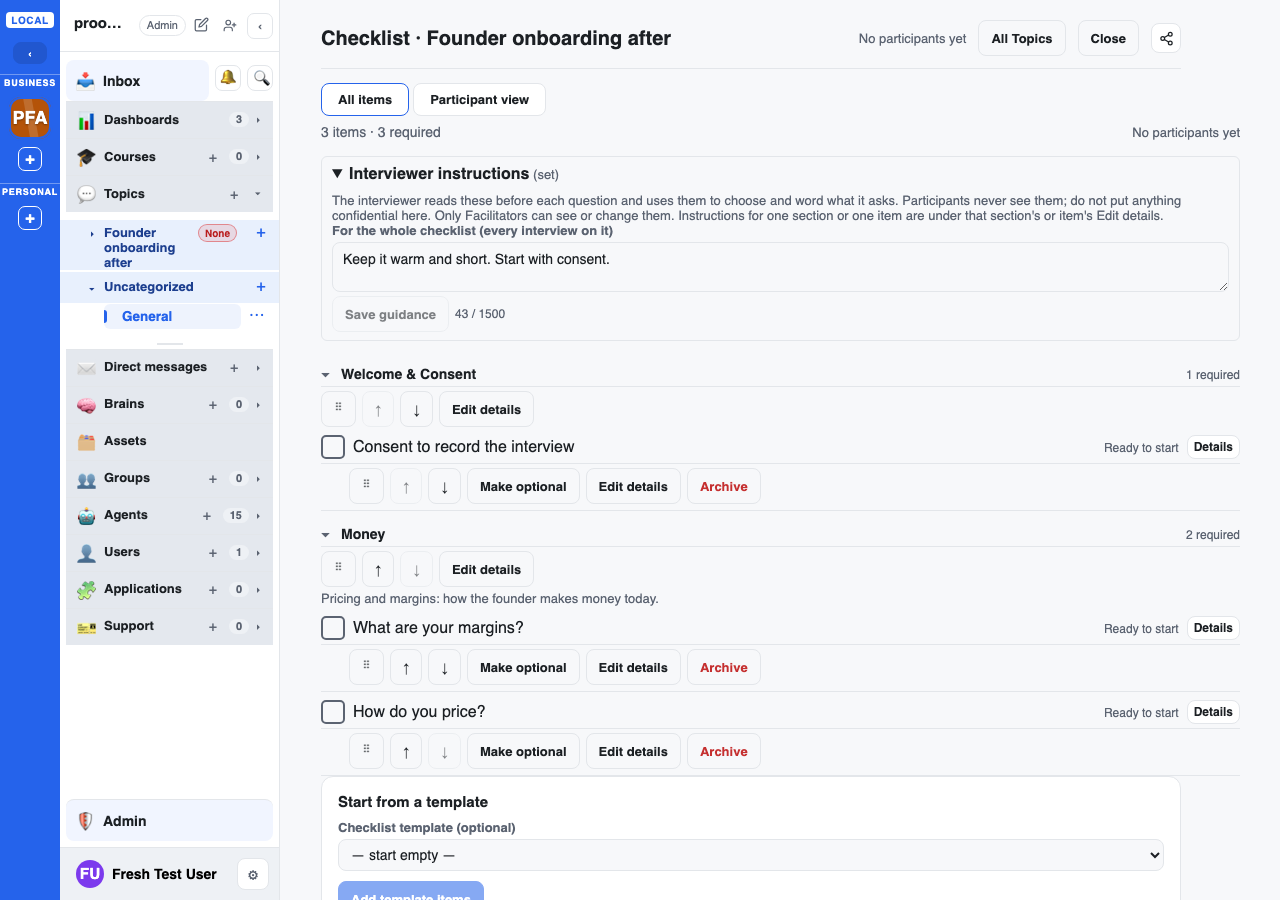
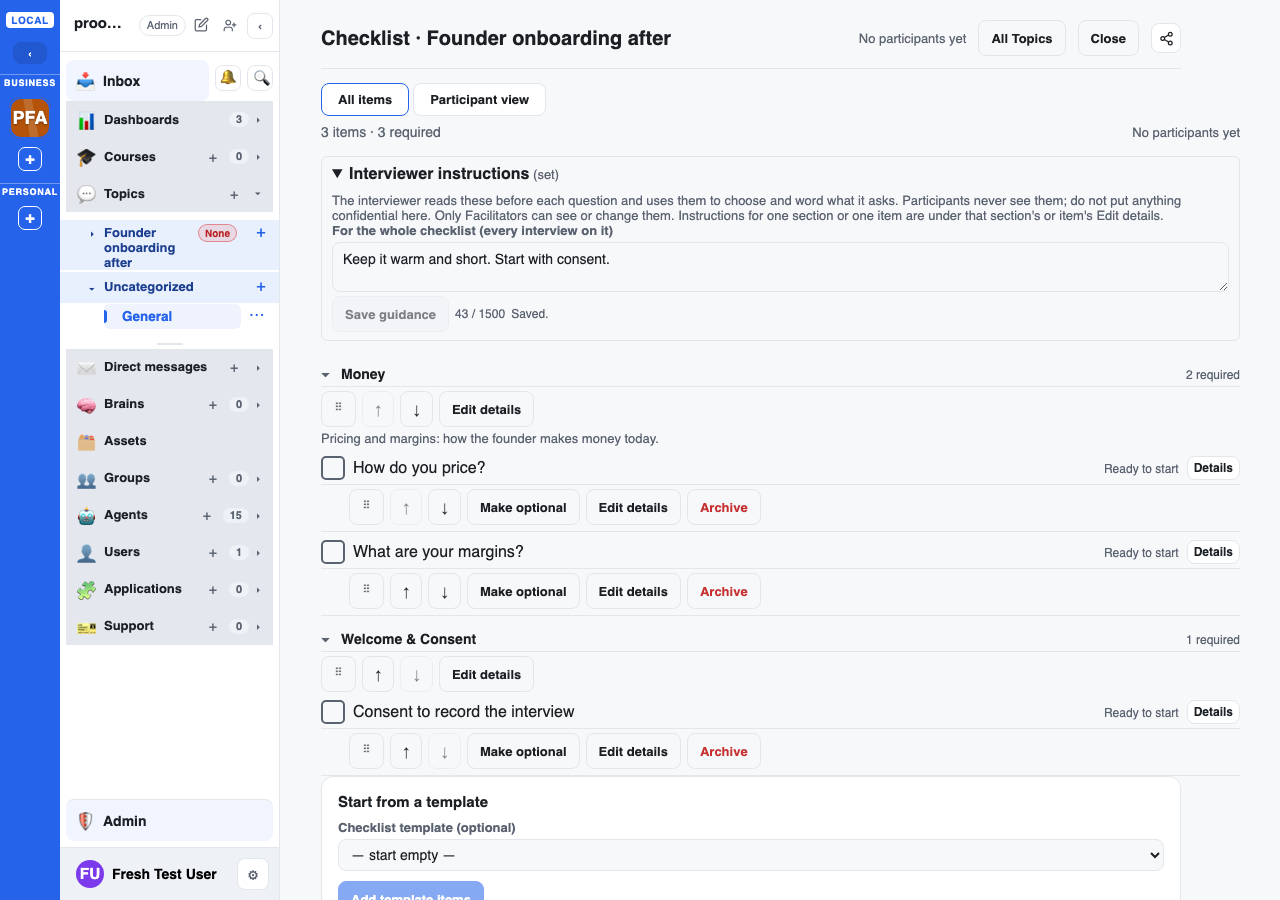
Interviewer instructions, at the top of the checklist, tells the interviewer how to choose and word its questions in every interview on this checklist. A section's or an item's Edit details form has its own instructions too, used only while the interviewer is on that part. Facilitators and above can edit them. They aren't shown on the checklist. Don't put anything confidential there.
The interview gate
An interview can start as soon as the checklist has any item, required or optional. With no items there's nothing to ask, so it won't start. The interviewee sees one of these, with a link to fix it:
| What they see | Link |
|---|---|
| This conversation isn't in a Topic, so there's no checklist to interview from. | Open Topics |
| This channel isn't a Topic yet, so there's no checklist to interview from. | Make this a Topic |
| This Topic's checklist has no items yet, so there's nothing to interview from. | Open checklist |
Starting an interview
The interviewee starts it themselves with /interview <subject> (add --voice to start by talking), or by choosing Type or Speak and pressing Start interview. The person who starts it is the interviewee. Everyone else in the chat sees a Viewing tag: they can read the interview, and only the interviewee can answer.
Each interview has three ways in, and one session can mix the first two:
| Mode | How it runs |
|---|---|
| Typed | In the chat itself. The interviewer's questions and the interviewee's answers are messages in the chat, typed in the chat's own message bar. A slim bar at the top shows Interview, the checklist and End interview. |
| Voice | In the browser, over the microphone. The interviewee can switch between Type and Speak at any point; it stays one interview with one transcript. |
| Phone | The interviewer calls a phone number. See Phone interviews. |
Voice and phone interviews open by saying the interviewer is an AI and that the session is recorded. The same words show on screen in the browser.
While it runs
- Order: required items first, then optional ones.
- Live grading: after each answer, the interviewer checks it against the open items and drafts Answers on the checklist, for typed and spoken turns alike. The rings move as items are covered.
- Your message bar opens in Whisper: in someone else's interview, what you type goes to the interviewer as a whisper by default, and the interviewee does not see it. See Whisper.
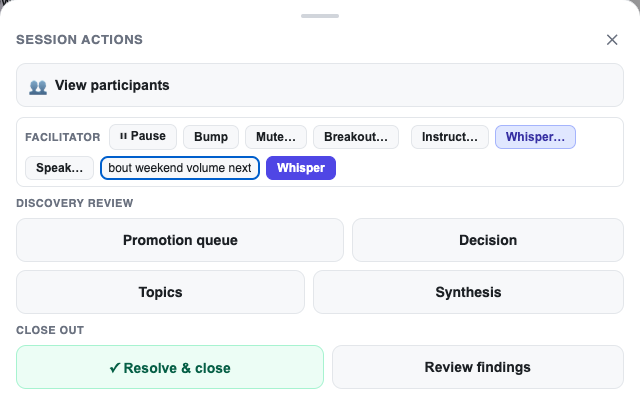
- Steering: open Session actions from the participants control at the top of the chat. Under Facilitator:
- Instruct… gives the interviewer a standing steer.
- Whisper… sends the interviewer a whisper the interviewee does not see.
- Speak… makes the interviewer say your words exactly.
How it ends
The interviewee presses End interview, signs off, or hangs up. The interviewer wraps up based on what was actually covered and never claims full coverage when something is missing.
- Interview complete: every required item is covered, even if optional ones are left.
- Ended with gaps: required items are still open. The chat says so and lists what is Still missing.
Either way the interviewee can press Add more detail later to continue. New material is added to the record; it does not replace it. Phone calls that fail to connect (busy, no answer) are marked failed with a note in the chat; nobody has to refresh anything.
An interview that a Facilitator has resolved reads Resolved. It offers no way to start, answer or add detail.
Interview status
The Topic's page and the matrix give each interview one of four statuses, with a short note where it helps:
| Status | Notes you may see |
|---|---|
| Not started | invited, invited, not joined, not invited yet, ready |
| In progress | paused |
| Needs review | with gaps, reviewing answers |
| Done | closed by facilitator |
An interview that stopped before the end reads Incomplete, with how much of the required checklist it covered, for example "Incomplete (40% done)".
Answers given outside an interview
In a programme workspace, Founders also answer in the Topic's shared conversation. The workspace setting Count founder answers given in the Topic conversation (on by default) checks those answers against the Topic's checklist and counts them toward each Founder's own progress, as interview answers do. Turn it off to count interviews only. Facilitators and Admins can change it in the workspace settings.
After the interview
Discovery review in the Session actions sheet has the follow-up pages:
- Promotion queue: statements the interviewee confirmed on their Review & confirm page. Include or exclude each one, pick the Brains to promote into, and approve. Nothing reaches a Brain without this step.
- Decision: the evidence coverage for the conversation, and a place to record a gate decision (Approved, Approved with actions, Hold or Not yet) with a summary.
- Checklist: the Topic's checklist, when the chat is in a Topic.
- Topics: the Topics page.
- Synthesis: across a Topic's interviews, the themes, where people agree and where they diverge.
To set deadlines with automatic reminders, or to settle differing answers across an interview group, see Interview deadlines and reconciling answers.
To compare every interviewee item by item, use the Topic's matrix; see Checklists & interviews.
People outside the workspace
Invite external person on a Topic's page emails someone outside the workspace a private link to answer one interview in that Topic.
- They do not need an account. The link opens only that interview.
- Enter their email and name and press Send interview link.
- Their row shows External, their email and a status such as Link emailed, Opened the link or Responding.
- Resend sends the link again. Revoke stops it working.
Phone interviews
Phone interviews start through the API, not from the message bar. Send POST /api/chats/{chat_id}/interview with the number in international format as the subject:
{ "subject": "+447700900123", "delivery": "phone" }- The number must be a valid international (E.164) number or the call is refused before anything is dialled.
- The same checklist gate applies.
- On a phone call the interviewer works from its instructions and the checklist only. It doesn't search your Brains.
- Your workspace needs voice set up first; see Voice & phone interviews.