
Taking an interview
An interview is a conversation with an AI interviewer. It asks you questions from a checklist, one at a time, and keeps a transcript. You can type your answers, speak them, or switch between the two as you go.
This page is for the person being interviewed. If you set up or run interviews, see Running interviews.
Starting
Interviews run inside a chat, usually a conversation in a Topic. To start one, type /interview and what the interview is about in the composer:
/interview how the bakery runs day to daystarts by typing./interview --voice how the bakery runs day to daystarts by talking.
Or pick Type or Speak in the interview panel, then Start interview.

Whoever starts the interview is the interviewee. Other people in the chat can watch, but only you can answer.
If the chat has no checklist yet, the interview won't start. You'll see a short note saying why, with a link to fix it (for example Make this a Topic or Open checklist). Ask a Facilitator if you can't open it.
Typing
The interview panel opens at the top of the chat. The interviewer introduces itself as an AI, then asks its first question. Type your answer and press Send (or Enter).
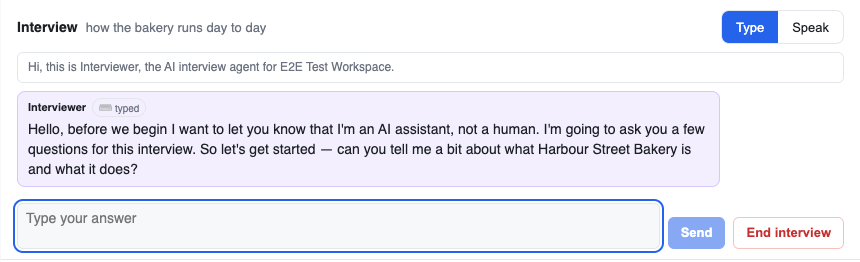
Every line in the transcript is tagged typed or spoken, so you can always see how each answer was given.
Speaking
Choose Speak to talk instead. Your browser asks for the microphone first.
Before you say anything, the panel shows who you're talking to and that the voice session is recorded. The interviewer says the same thing out loud, for example "Hi, this is Interviewer, the AI interview agent for your workspace." There's no form to sign: you just carry on, or switch back to typing.
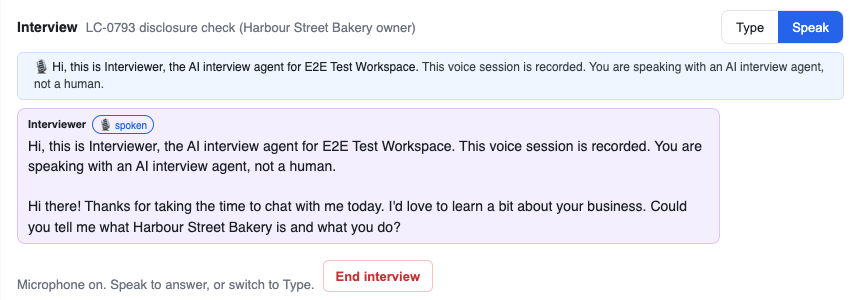
- Switch any time: Type and Speak sit at the top of the panel. The interviewer keeps the thread across the switch.
- If voice drops: you'll see "Voice disconnected: continue by typing or reconnect", with Continue by typing and Reconnect.
- One tab at a time: if voice is live in another tab, this one says so.
- On the iPhone app: voice stops if the app goes to the background. You're put back in the typed interview; tap Speak to reconnect.
- If voice isn't available in your workspace, the panel tells you and you keep going by typing.
By phone
An interview can also be a phone call. The interviewer rings your number, introduces itself as an AI, asks the same checklist questions and ends the call politely when you say goodbye. The transcript lands in the chat afterwards. Phone interviews are set up by the person running them; see Running interviews.
Your answers
As you talk, the interviewer drafts Answers on the checklist from what you said. Press Progress in the interview bar to see them (Hide progress closes it).
On a screen 900 px wide or more, Progress opens as a side panel on the right of the chat. Its heading shows the progress ring; the checklist inside carries the count. × closes it. While it is open the Assets panel is hidden; closing Progress brings Assets back if it was open before.
On a narrower screen it opens inline, under the interview bar.
You see your own Answers, never anyone else's.
You can correct your own Answers. A steward confirms them later.
Required items come first. Optional ones follow once the required ones are covered.
See Checklists for how Answers and progress rings work.
Ending
Press End interview when you're done, or just say so. The interviewer wraps up honestly: if something is still missing, it names it rather than claiming everything is covered. Any recap it gives reads back your saved answers; it never recaps from memory or states a figure you didn't give.
If you go off-topic, the interviewer steers you back to the checklist. Those redirects never count as answering an item.
The panel then shows one of these:
- Interview complete: every required item was covered.
- Ended with gaps (amber): some required items weren't covered. The panel lists what's still missing, and the chat gets a note naming them.
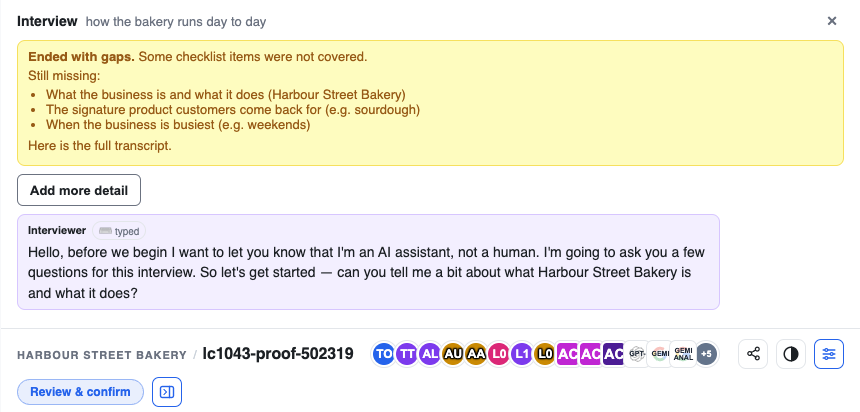
The full transcript is also posted into the chat.
Adding more later
A finished interview isn't over for good. Press Add more detail to pick it up again: the interviewer carries on with what's missing or optional, and your new answers are added to the record. Nothing earlier is replaced.
Review & confirm
After the interview, Review & confirm appears under the chat title. It opens a page with the interview summary and the statements taken from what you said. You can:
- Confirm summary when it's right.
- Correct a statement, or remove one you don't want kept.
Only confirmed material can go on to a Brain, and a steward still has to approve it first.
Facilitator whispers
Workspace facilitators, and platform staff when supporting the workspace, can see conversations in groups they facilitate and may privately whisper to the AI agents in them. During an interview a facilitator may steer what the interviewer asks next. You do not see those whispers, and it never changes your answers.