
Agents and models
Agents are configured per workspace. This page covers the agents a workspace starts with, how to add and edit them, how an agent's model is chosen, and prompt caching.
Managing agents needs the Owner or Admin role.
The agents a workspace starts with
Your platform operator sets the starting list. Out of the box it is:
Model agents
Each one answers with a particular model, so people can ask a model directly.
| Agent | Model |
|---|---|
| Opus 4.6 | Claude Opus |
| Sonnet | the platform's default inference connection |
| Gemini Flash (latest) | Gemini 3.8 Flash |
| GPT-5.1 | the platform's default inference connection |
Role agents
Each one has a brief, and the Dispatcher routes a message to it when the message fits. They follow the platform's default model, except AI Designer, which uses image generation. Opus 4.6 and the Gemini agents are pinned to a model; Sonnet and GPT-5.1 follow whatever the default inference connection serves.
| Agent | Routed to when the message is about |
|---|---|
| AI CEO | company strategy, high-level decisions, priorities, competitive positioning, resource trade-offs |
| AI CTO | technical feasibility, architecture, engineering standards, tooling, infrastructure, security |
| AI CMO | marketing strategy, campaigns, messaging and copy, brand, audiences, funnels, marketing metrics |
| AI CRO | sales, the pipeline, a specific deal or prospect, proposals, objections, forecasts, deal pricing |
| AI COO | operations, processes, execution, capacity, delivery, onboarding, bottlenecks |
| AI CFO | cash flow, runway, budgets, forecasts, unit economics, margins, valuation, deal structure |
| AI Designer | an explicit request for an image, picture, illustration, diagram or logo |
System agents
| Agent | What it does |
|---|---|
| AI Facilitator | Takes general requests that fit no other agent. Its name follows the workspace's word for Facilitator. See The AI Facilitator. |
| Interviewer | Runs interviews. It speaks only inside an interview or when someone @mentions it. See Voice & phone interviews. |
The Dispatcher decides which agent takes each message. It is run by the platform. An Owner can choose a workspace agent to act as dispatcher instead.
Where agents are managed
Manage agents, in the left sidebar
Click the ⚙ on the Agents section header to open Manage agents.
- Drag a row to set the default order the workspace uses when it is unsure who should take a request. The sidebar shows the same order.
- + Add agent creates an agent. Give it a name, then edit it.
- Manage on a row opens that agent's pane. The pane offers only the actions you are allowed to take:
| Action | What it does | Who |
|---|---|---|
| Message | Opens a chat with the agent | Anyone |
| View | Shows the agent's details | Anyone |
| Edit | Opens the agent editor | Owner, Admin |
| Clone | Makes a copy you can change | Owner, Admin |
| Edit avatar | Changes the agent's picture | Facilitator and above |
| Use as dispatcher | Makes this agent the workspace's dispatcher | Owner |
| Revert to platform Dispatch | Hands dispatching back to the platform | Owner |
| Remove | Deletes the agent, after a confirmation | Owner, Admin |
A Facilitator who is not an Admin can edit an agent's Strengths only.
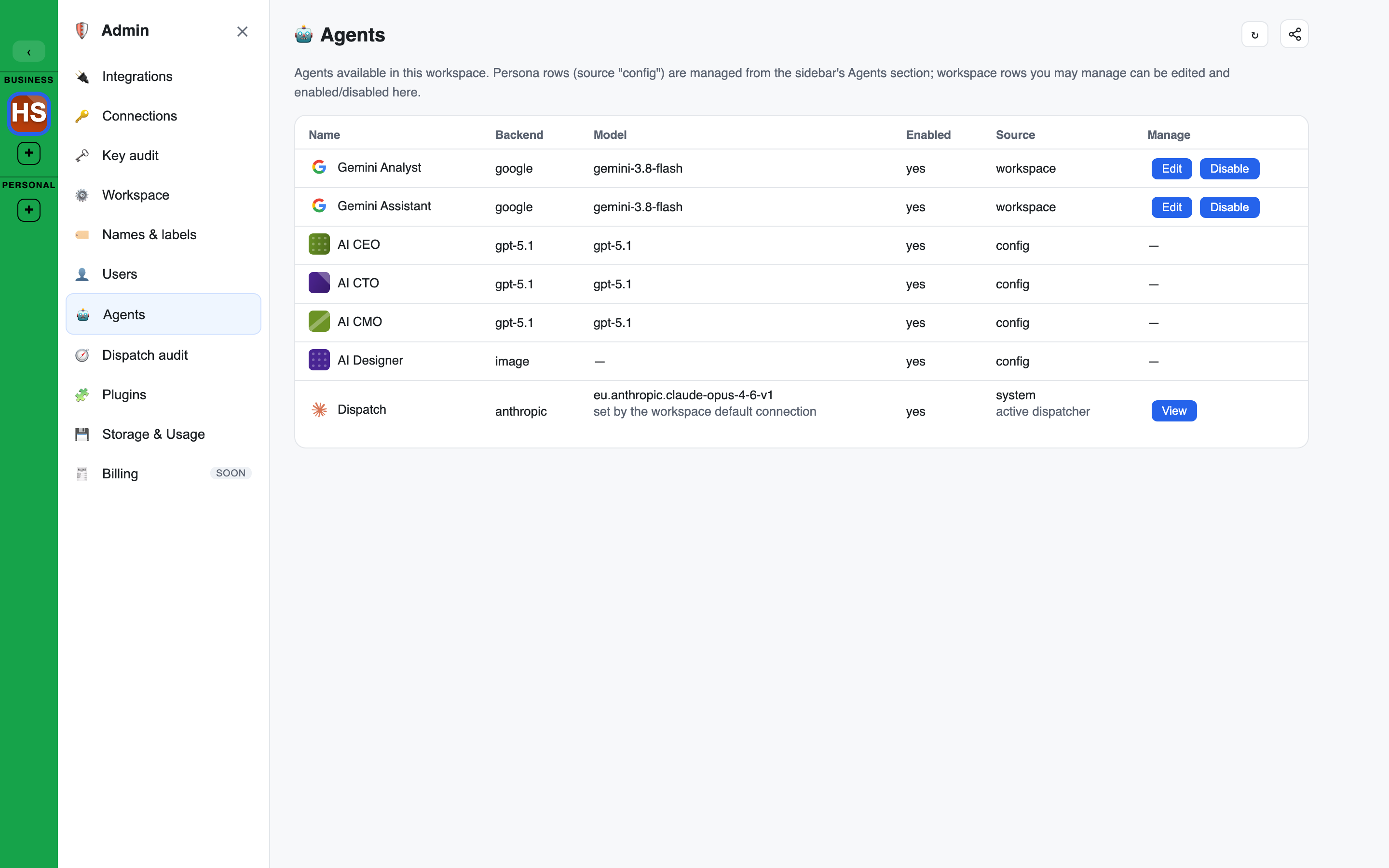
The Agents page, in the Admin console
Agents in the Admin console is the full list in table form: Name, Backend, Model, Enabled, Source and Manage.
- Edit opens a short editor: name, avatar, backend and model, Thinking and the system prompt.
- Disable and Enable switch a workspace agent off and on.
- A Facilitator who is not an Admin sees Edit strengths instead.
- The row marked "active dispatcher" is the agent dispatching for the workspace. The dispatch row's Model shows the model routing actually runs on, with a note when it falls back or skips a model.
- A row whose backend and model are set by the platform shows who sets them. Its editor shows them read-only. The Dispatcher's routing model is set by your platform operator.
Thinking
Thinking decides whether a Claude agent uses extended thinking before it answers.
| Choice | Effect |
|---|---|
| Default (tools on, else off) | On for an agent with tools, off otherwise |
| On | Always think |
| Off | Never think |
| Inherit global setting | Follow the platform's setting, which is on by default |
- Other models are not affected.
- How hard the agent thinks is set by your platform operator.
- How thinking is shown in a chat is each person's own Thinking choice in Settings > Display.
Editing an agent
The agent editor has these fields:
| Field | Meaning |
|---|---|
| Avatar | Click to change the picture |
| Name | The name people @mention |
| Short description | One line, shown in listings |
| Description | A longer description |
| Strengths | What it is best at, up to 200 characters. The Dispatcher uses this when picking an agent. |
| Model agent | Shows a model badge on the agent and lists it under Models |
| Can manage this workspace | Lets the agent add agents, Topics, interviews and invites and change members when someone asks it to, only as far as that person may themselves. Workspace agents only. On by default for the AI Facilitator, off for every other agent. |
| Backend and Model | Which provider and model answer. See below. |
| System prompt | The agent's instructions. ✨ Generate system prompt drafts one from the name and descriptions; review it, or Undo draft. Nothing is saved until you press Save. Preview as brand shows the prompt as the product will read it. |
| Own brain | The agent's primary knowledge Brain |
| Other brain access | Other Brains the agent may read |
| Integrations | Which integrations the agent may call: Inherit, Restricted or Off for each |
A built-in agent is not changed in place. Saving your changes to one makes a copy for your workspace (Clone & save).
Choosing an agent's model
An agent's model is two choices.
- Backend is the provider or model family the agent uses. A backend marked "no credential" has no key behind it in your workspace.
- Model is either left at backend default or set to one model from the list.
- Left at backend default, the agent follows whatever model the backend resolves to. When your operator changes the default, the agent follows.
- Set to a named model, the agent is pinned: it uses exactly that model until you change it.
The model list can be narrowed with Any region, Any capability, a ZDR only tick box and Show all models. With Show all models off, the list holds chat-grade models only.
A model with no price set is left out of the list: no model runs without price data. See Every model has a price.
When a pinned model cannot be used
- A connection can limit which models it may use. See Allowed models. A model that is not on a connection's list is never sent to that connection. The agent's reply says so, and where it can, the platform substitutes an allowed model and tells you which.
- The platform checks every pinned model on a schedule by making one small real request to each. A pinned model that does not answer raises an alert for your platform operator, and the alert clears by itself when the model answers again.
If an agent stops replying after a model change, open its editor and either pick a model from the list or set Model back to backend default.
Disabled agents
An agent that needs a service the workspace does not have is switched off and shows why in the Enabled column, for example "Disabled: image generation not configured" for AI Designer.
- A disabled agent is not routed to and is not offered in the @ picker.
- It shows greyed in the left sidebar. Hovering shows the reason.
- It comes back by itself once the service is connected and healthy. Image generation is set up by your platform operator.
Prompt caching
Each time an agent replies, the model receives the agent's instructions followed by the conversation. The start of those instructions is the same from one turn to the next. Prompt caching lets the model provider reuse that unchanging start, which cuts the cost and the wait of each reply.
- The setting is
prompt_cache. It is on by default. - It is set for the whole platform and can be overridden per workspace.
- The Workspace page has no control for it. Ask your platform operator to set a different value for your workspace.
- With it off, instructions are sent with nothing marked for reuse. OpenAI and Google may still reuse a repeated start on their own.
- Reuse works best when the two thinking-effort settings match.
Where cached tokens show
Cached tokens are counted separately from ordinary input tokens, because providers price them differently.
- In a chat's performance strip, a turn shows its cached tokens as "cache r" (read from the cache) and "w" (written to it).
- Hovering over the cost on an agent's reply shows the input tokens with the cache tokens read and written alongside.
- The cost already prices cached tokens at the provider's cache rates.
See Credits & spend.