
Plugins
The Plugins page in the Admin console turns the collaborative widget and whiteboard types on and off for your workspace. It decides which of these tools your members can create.
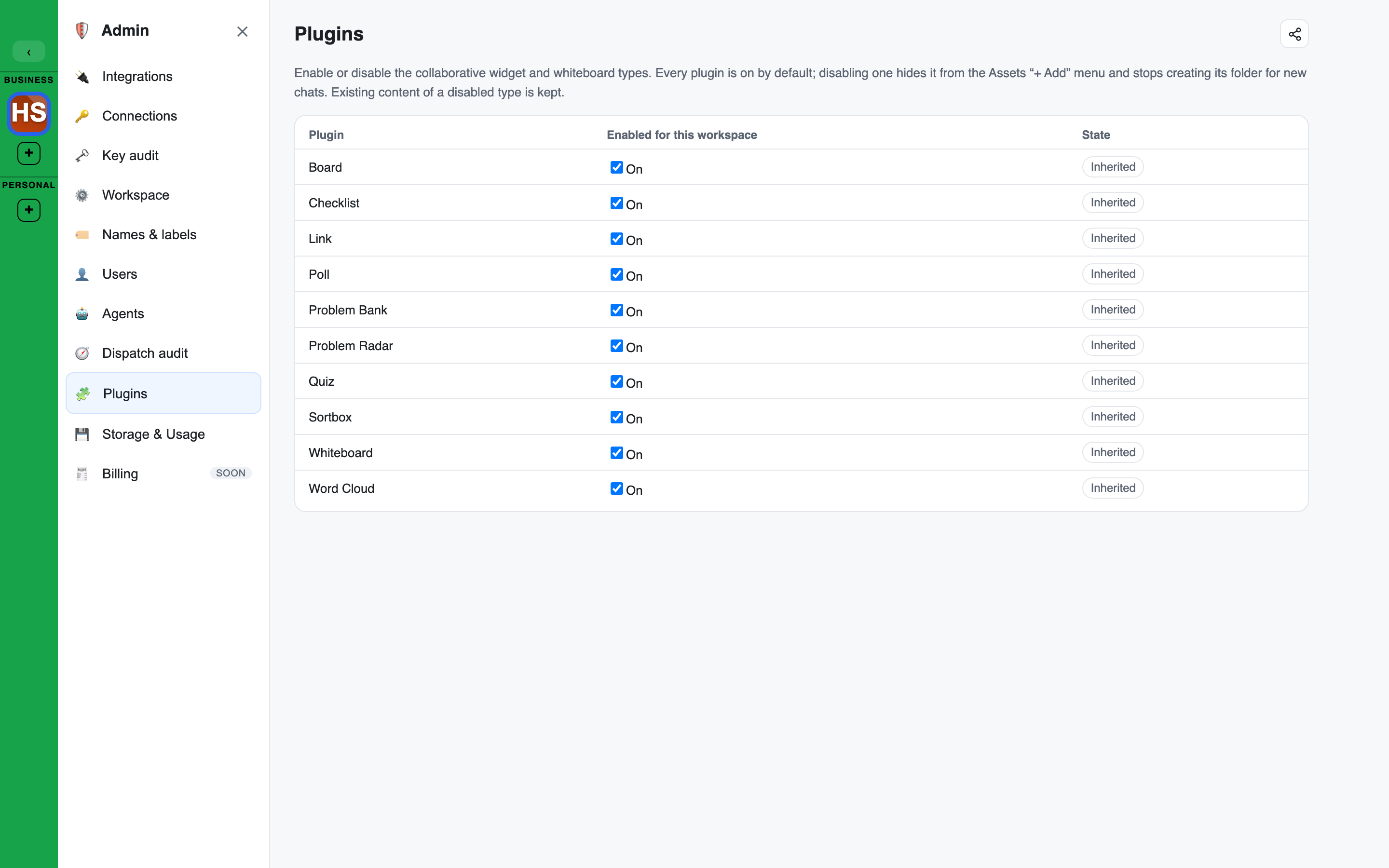
What it lists
One row per type, sorted by name:
- Board
- Checklist
- Link
- Poll
- Problem Bank
- Problem Radar
- Quiz
- Sortbox
- Whiteboard
- Word Cloud
Every plugin is on by default.
What switching one off does
- It disappears from the Assets + Add menu.
- New chats stop getting a default folder for that type.
- Existing content of that type is kept. Nothing is deleted.
The + Add menu and the folders follow the switches directly, so they stay in step without any other setup.
The columns
| Column | Meaning |
|---|---|
| Plugin | The type's name |
| Enabled for this workspace | Your switch: On or Off |
| State | Inherited when your workspace follows the platform default, Overridden when your switch differs from it |
- A row that reads not available here cannot be used in your workspace: it is off for the platform or off for your workspace.
- Reset to inherit appears once your workspace has set a switch. It removes your setting, so the row follows the platform default again.
Platform default, workspace override
- Your workspace inherits each plugin's platform default.
- You can switch an inherited plugin off for your workspace.
- You cannot switch on a plugin that is off for the platform. Its switch is greyed out.
Who can change it
Changing or resetting a switch needs the manage_connections permission, which the Admin and Owner roles hold. Every change is recorded in the audit log.
One plugin model
Widgets, integrations, connection providers and model catalogues use the same plugin registry and activation model. See Integrations & plugins.