
Founders and positions
Two things on a member's row look alike and are not connected:
- Founder is a switch. It marks the person as a founder of the workspace's company and changes what they can record and see.
- Position is a line of text, such as a job title. It changes nothing about what the person can do.
Setting one never sets the other. A person can be a Founder with no Position, or have the Position "Founder & CEO" without the Founder switch.
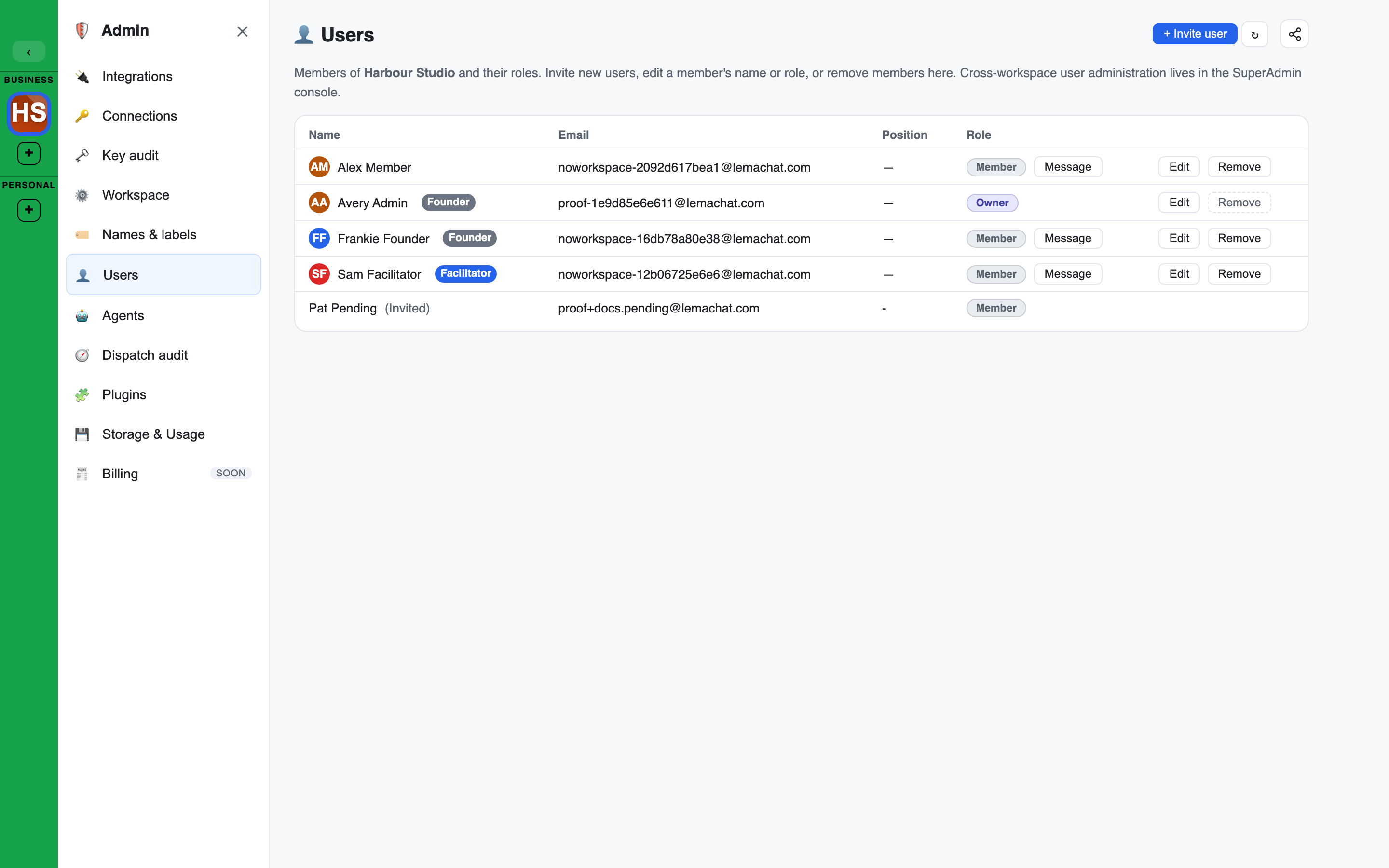
The Founder switch
A Founder:
- records founder decisions. Only a Founder can record one. An Owner, Admin or Facilitator who is not a Founder cannot.
- sees founder-only reviews.
- saves findings straight into the company Brain, while the workspace allows it. See Founders and the company Brain.
- has their answers in a shared Topic conversation count toward their own onboarding progress, while the workspace's Founder answers in Topics setting is on.
Founder gives no other permission. It does not make someone an Admin, and it does not change which Brains or chats they can open. Those come from roles and groups.
Founders and the company Brain
The company Brain is the onboarding site's Brain. Every member can read it.
- With Founders write to the company Brain on (the default), a Founder accepts their own findings into it.
- With it off, a Founder's findings stay proposed in their chat until a Facilitator accepts them.
- Facilitators, Admins and Owners can always read and save into the company Brain, from the role alone, even if they never joined the onboarding site.
- The setting is on the Admin console's Workspace page. A Facilitator, Admin or Owner can change it. See Workspace settings.
A Facilitator can only accept findings in a chat they can read. If Founders cannot write the company Brain and Facilitators can see and act in private chats is also off, nobody could approve a Founder's findings. Both settings then show a warning asking you to turn one back on.
The word "Founder" is one of the workspace's names and labels, so it can be renamed.
The person who creates a workspace is a Founder of it.
Who can change it
Owners, Admins and Facilitators can turn Founder on or off for a member, including for themselves. It can only be given to a person's own account, never to a guest or an agent.
Turning it on or off
- Open Users in the Admin console.
- Press Edit on the person's row.
- Tick or clear Founder and press Save.
Founders show a Founder badge beside their name on the Users page and in the left sidebar's Users section.
Removing a Founder can reveal decisions
At a checkpoint, Founders' decisions stay hidden from each other until every Founder has decided. Removing the one Founder a checkpoint is waiting for completes it, so the decisions are shown to the remaining Founders. When that would happen, the app names the checkpoints, asks "Reveal the decisions?" and you confirm with Remove and reveal or cancel.
Removing a Founder from the workspace also ends their Founder switch, and any checkpoint that was waiting only for them completes and is revealed.
Inviting a Founder
Someone can join as a Founder straight from their invite.
- In Invite people (the + on the workspace line), tick Founder. Everyone invited in that form joins as a Founder.
- In + Invite user on the Users page, tick Founder.
A founder invite:
- needs the person's email address;
- is single-use and only works for that address;
- can be created by an Owner, Admin or Facilitator.
If the person who sent a founder invite has lost the right to manage Founders by the time it is accepted, the invited person still joins, without the Founder switch.
The invited person follows the same steps as anyone else. See What the invited person sees.
Position
Position is free text, one line, up to 80 characters, for example "Head of Sales". It shows in the Position column of the Users page.
- Every member can set their own.
- Owners, Admins and Facilitators can set anyone's.
- Clearing the field removes it.
To change it, press Edit on the person's row on the Users page, type the Position and Save.