
Applications
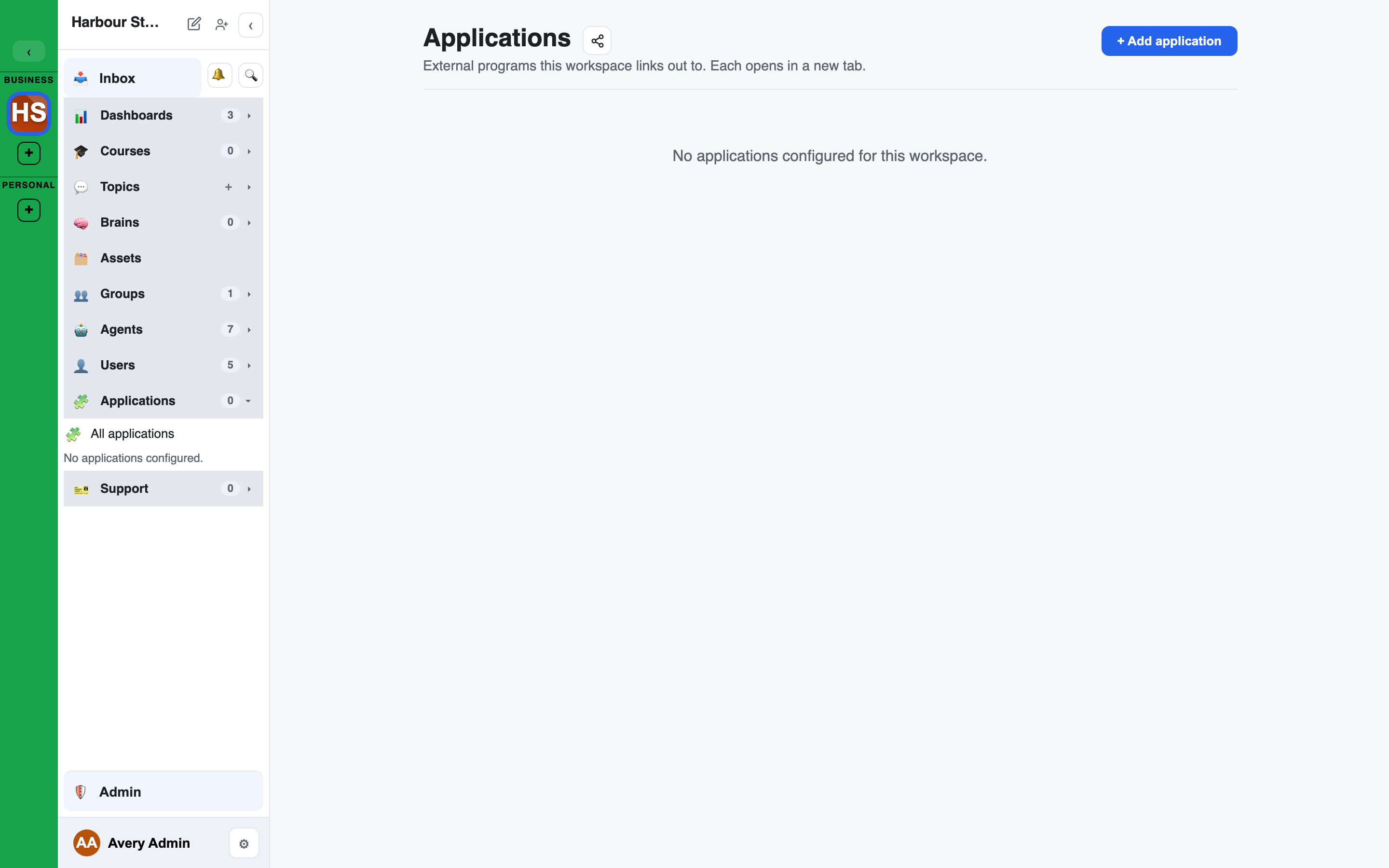
The Applications section of the left sidebar lists the external programs your workspace links out to, such as accounting, CRM, email, drives, calendar and docs.
- Each row opens in a new tab.
- The section header opens the same list as cards in the main area.
- Each card shows the destination's host name, so people can see where a link goes before they leave.
Who can change the list
Facilitators, Admins and Owners manage Applications. This is the manage_applications permission. Members see the cards with no controls.
- Add application (or the + on the sidebar section) opens a form.
- Each card has Edit and Delete. Delete asks you to confirm, then moves the application to the workspace Trash. Restore it from the Trash until it is deleted for good.
- Reorder by dragging a card's handle, or with its Move up and Move down buttons from the keyboard.
Changes show up at once for everyone in the workspace.
What an application has
| Field | Required | Meaning |
|---|---|---|
| Name | yes | The label on the row and card, up to 120 characters |
| URL | yes | Where it goes. Must start with https:// |
| Icon | no | An emoji shown with the name |
| Category | no | A short grouping label, for example "Payments" |
| Description | no | A short description on the card, up to 500 characters |
Only https:// links are accepted. The form refuses, and says why:
- plain
http://,javascript:ordata:links - relative links
- links with spaces
- links with a username and password in them
- links without a real host name
Defaults for new workspaces
- Your platform operator keeps a list of default applications.
- A new workspace starts with a copy of that list. If the list is empty, it starts with no applications.
- Existing workspaces are never changed when the default list changes.
- Once a workspace has its own list, it is yours to edit.
Links, not integrations
Applications are plain links. Connecting a tool so that agents and Brains can use it is different: see Integrations & plugins.