Boards
A board shows cards in columns, one column per state, so you can see at a glance where everything is and move a card on with a drag.
You can open a board in three places:
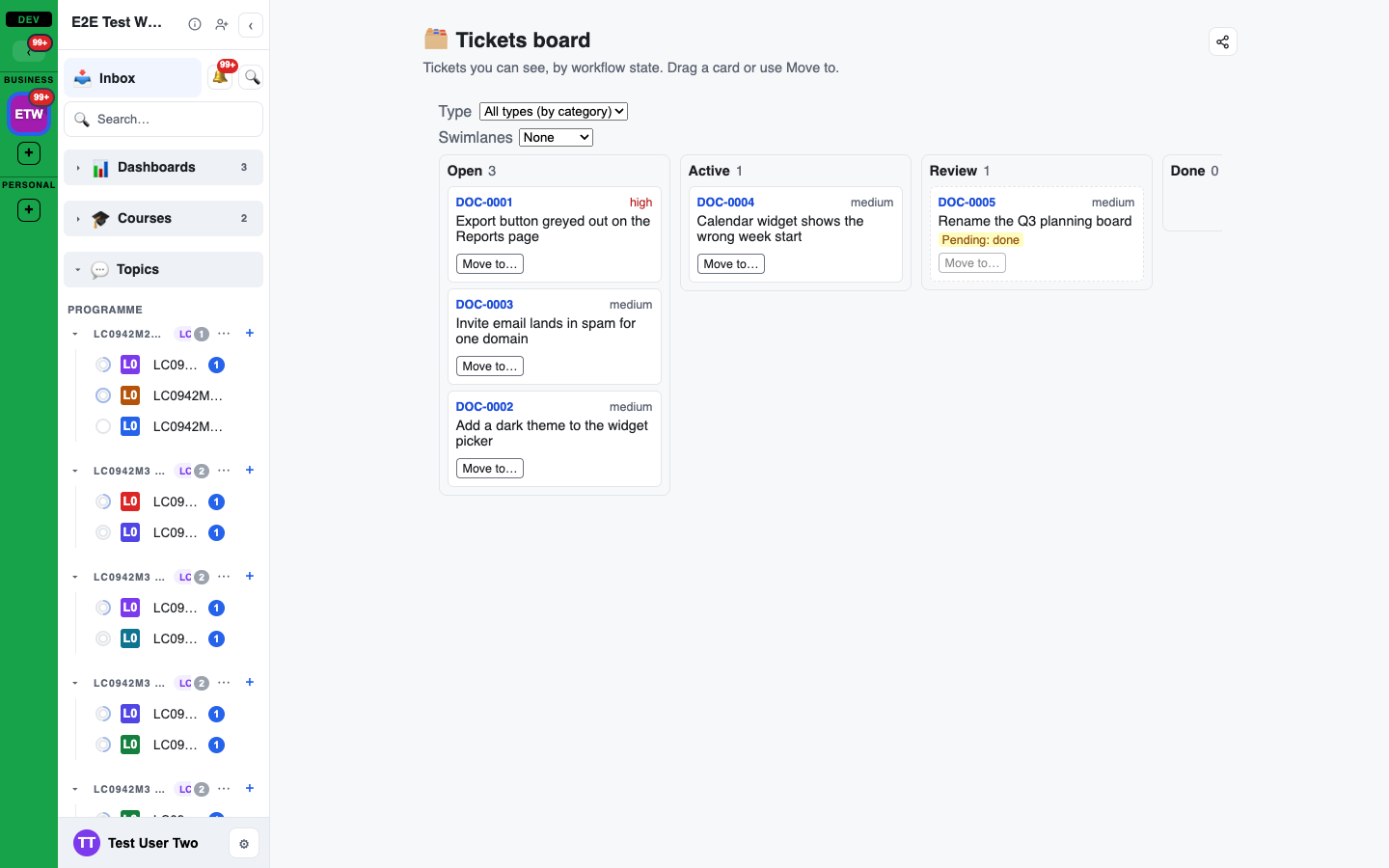
- Support > Board: tickets, either one ticket type by its workflow states or every type by category (Open, Active, Review, Done, Dropped).
- Dashboards > Tickets board: the same board on its own page.
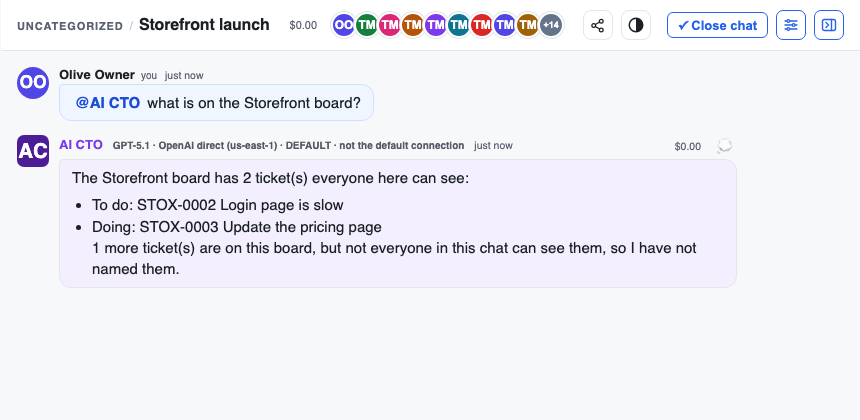
- In a chat: add a Board from the + menu. It can show tickets, or the interviews of the Topic the chat belongs to.
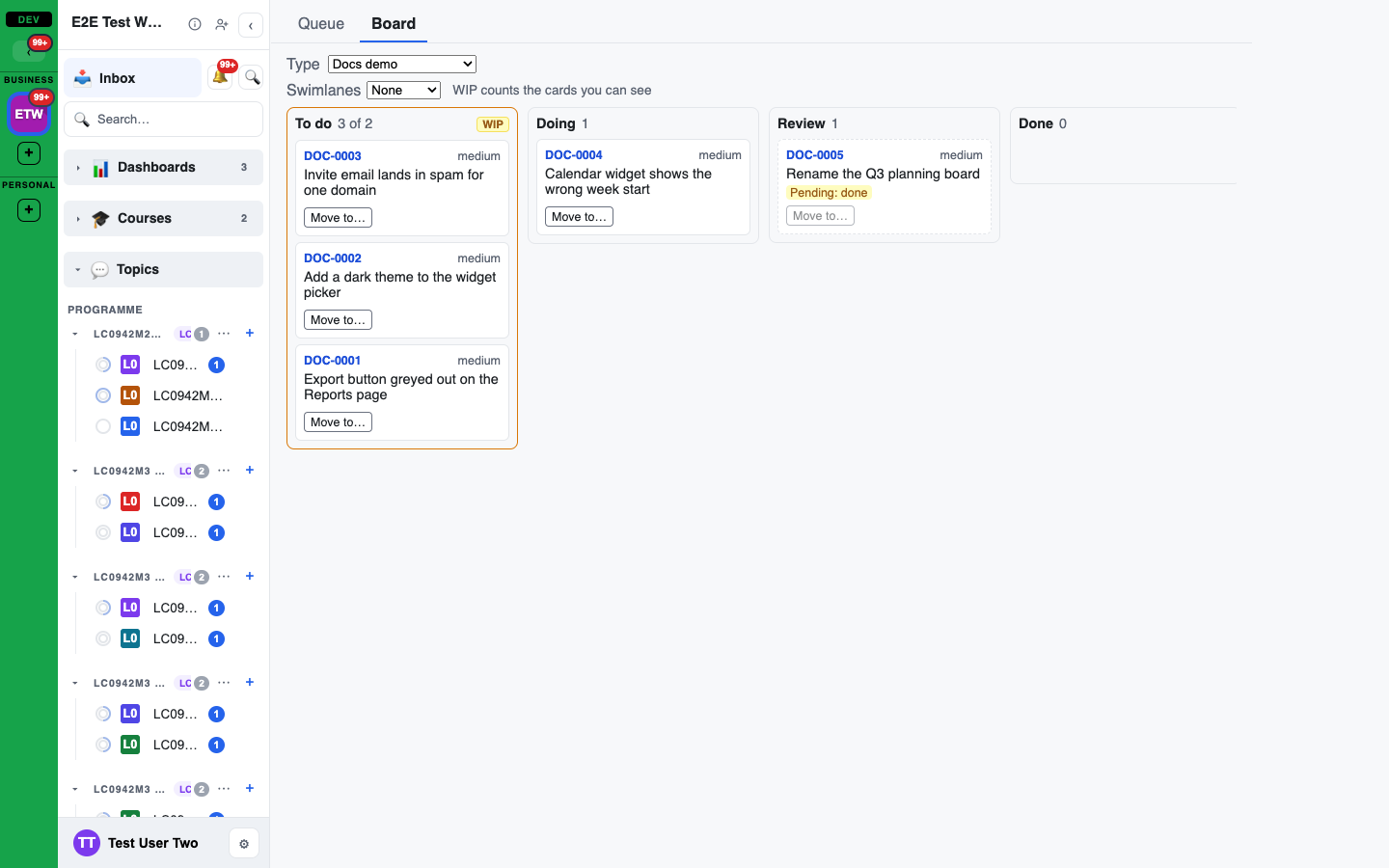
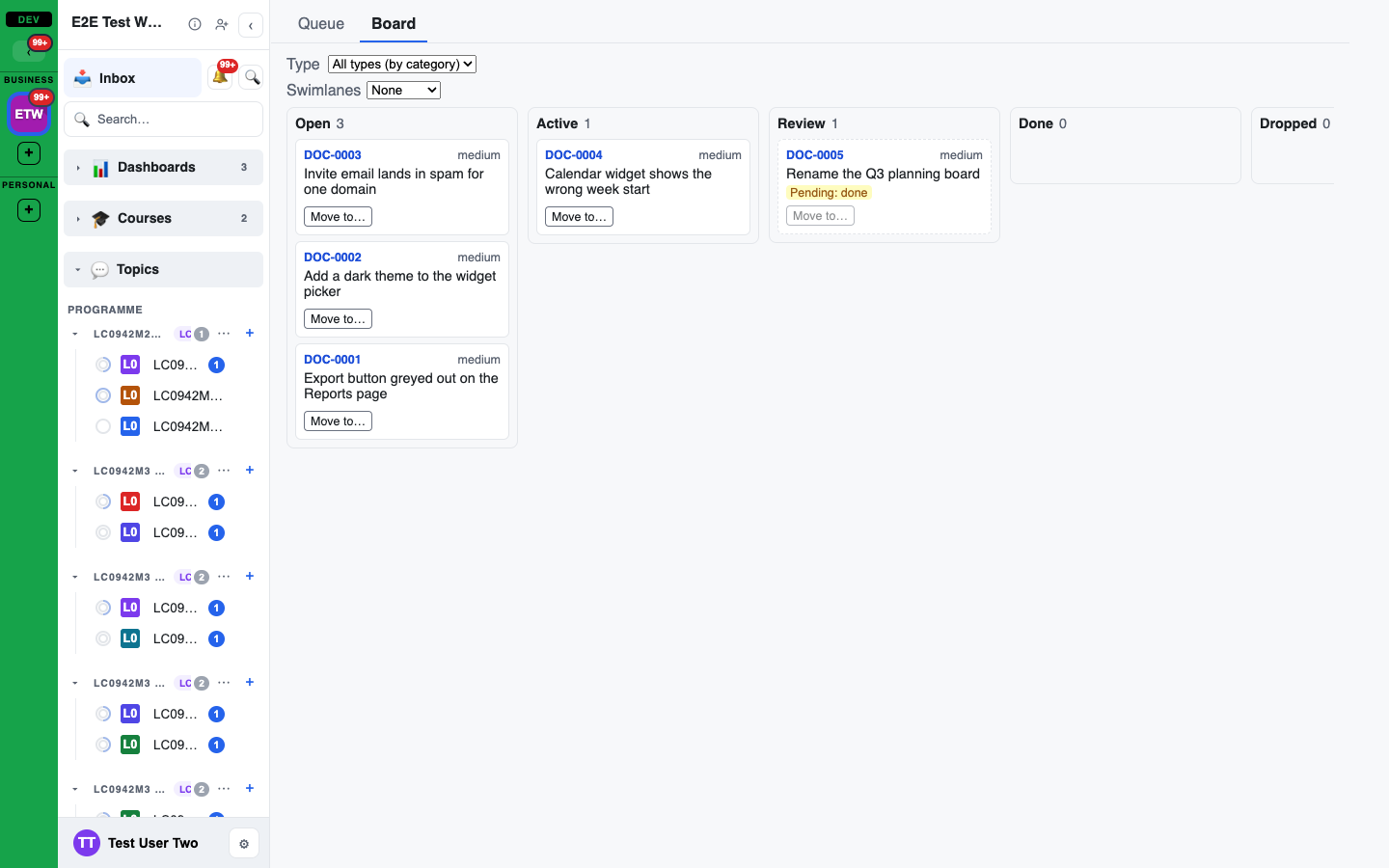
On Support > Board, pick a ticket Type to see its own states, or leave it on all types to see every ticket by category.
Swimlanes splits the board into lanes by Assignee or Severity. When the board shows one ticket type, you can also split it by any of that type's choice fields (a field with a fixed list of options, such as Priority).
Lanes are listed in a fixed order: severity from most to least severe, a choice field in the order of its options, and people alphabetically with Unassigned first. A lane with no cards is shown as a thin strip, so you can still drop a card into it.
Next to Swimlanes, Show lanes as picks how the lanes look. The board remembers your choice for you in this workspace, on every device, and uses it wherever a board appears, including board widgets and dashboards:
- Rows (the default): each lane is one row across every column. The lane name and its card count stay pinned at the left as you scroll sideways, and the cells of a row line up, so moving a card to another lane is straight up or down, and moving it to another column is straight left or right. Use the arrow next to a lane's name to collapse or expand it; the board remembers which lanes you collapsed. You can drop a card on a collapsed lane's name to move it to that lane.
- In columns: each column lists the lanes inside it, one under the other.
On a phone, in Rows, each lane's name sits above its row of cells.
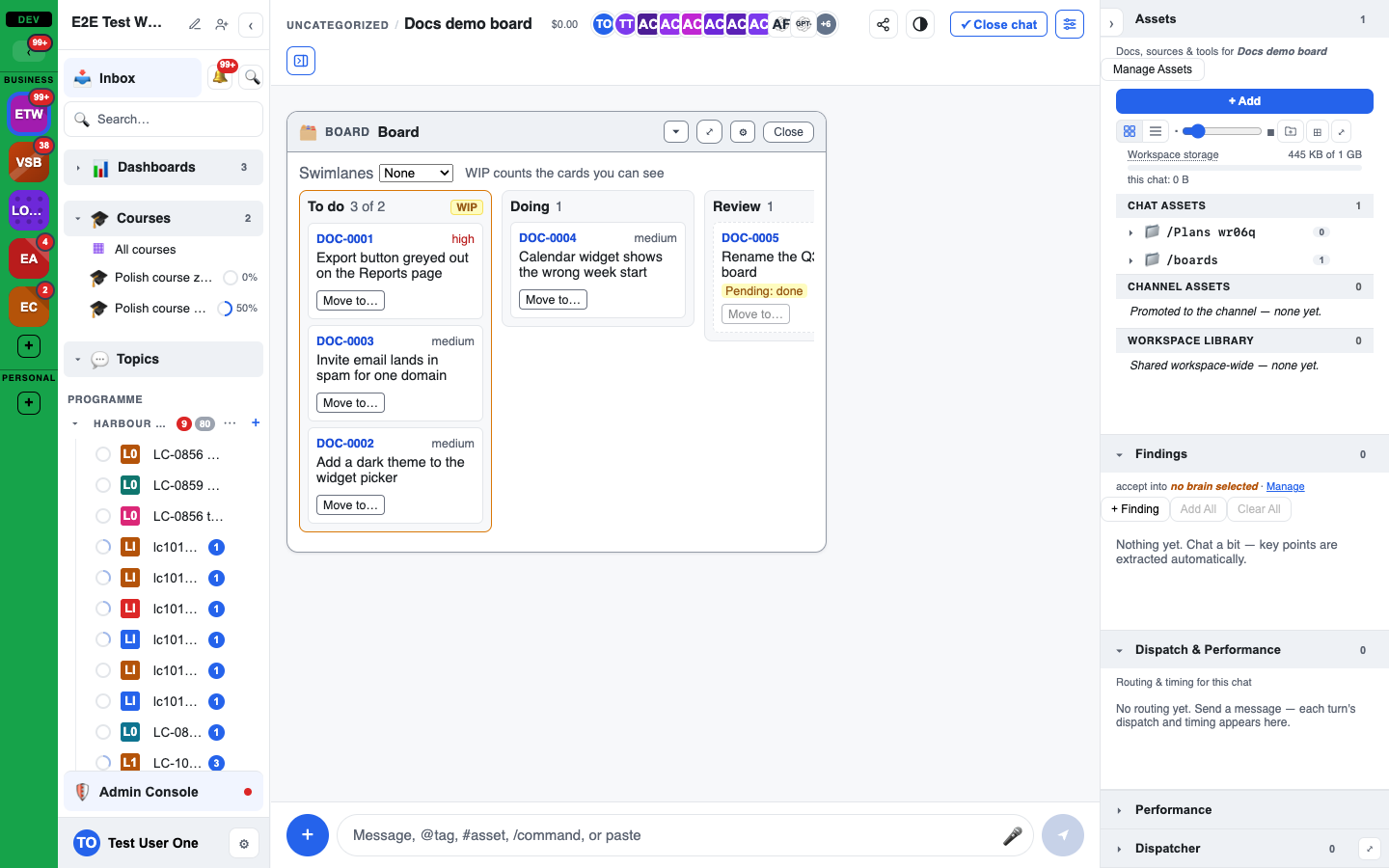
A column can have a WIP (work in progress) limit. When a column holds as many cards as its limit or more, it is outlined and shows a WIP tag, and its count reads, for example, "3 of 2".
You only see your own cards
A board shows only the cards you are allowed to see, and every number on it counts only those cards. A column's work-in-progress (WIP) limit is checked against the cards you can see, which the board notes as "WIP counts the cards you can see". Someone else may see more cards on the same board.
A board added to a chat is shown to each person with their own cards. If you cannot see the ticket type or Topic a board is about, you see a locked card instead. A board of a private ticket type can only be added to a chat where everyone manages tickets.
Moving a card
- Drag a card to another column. Only the columns it can move to light up.
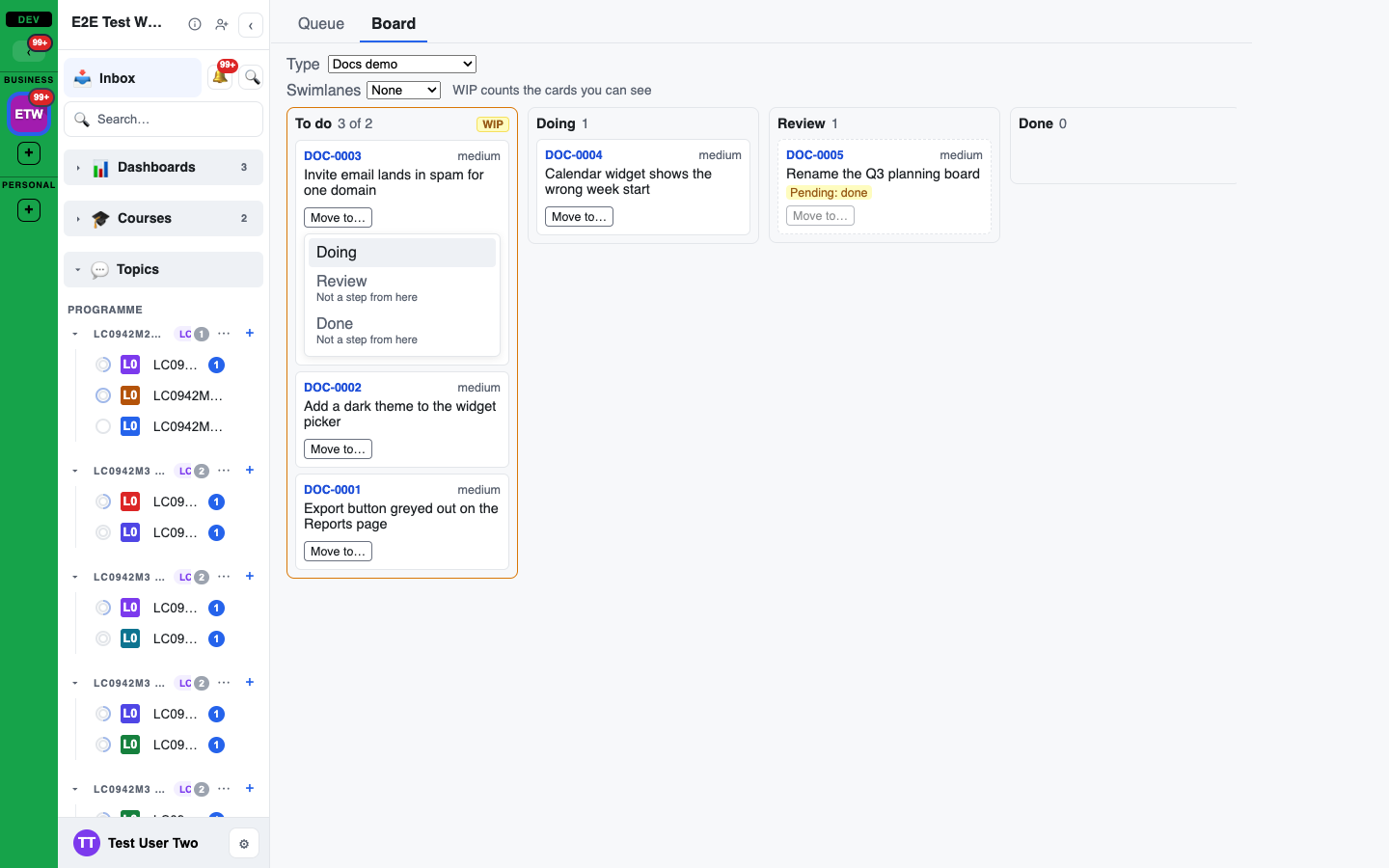
- Or use Move to... on the card (or press Enter on a focused card) and pick a state with the arrow keys and Enter. States you cannot move to are listed with the reason. Escape closes the menu.
What happens next:
- Moved: the card stays in its new column.
- Needs approval: the card stays where it was with a Pending badge until a ticket manager approves the move from the ticket itself.
- Needs evidence: you are asked for an https link, then the move is tried again.
- Moved since you loaded it: someone else moved the card first. It goes back, the board refreshes, and you can try again from where it is now.
Interview cards cannot be dragged; an interview moves through its own steps.
Moving a card between swimlanes
With swimlanes on, you can also drag a card into another lane (up or down in Rows; to another lane section in the same column in In columns). That changes the field the lanes are split by:
- Assignee lanes reassign the ticket (ticket managers only).
- Severity lanes change its severity (ticket managers only).
- A choice field lane (for example Priority) sets that field. The reporter, the assignee or a ticket manager can do this, the same people who can edit the field on the ticket.
Only lanes you are allowed to move the card to light up. Text fields are never lanes, so a drag never edits free text.
A drag changes one thing at a time: either the column (the state) or the lane (the field), never both. To do both, move the card twice.
Without a mouse, open Move to... on the card. With swimlanes on, the menu has a Move to lane group under the states. Lanes you cannot move to are listed with the reason.
If someone changed the same field after your board loaded, the card goes back to where it was and the board refreshes, so you can try again. The change is recorded on the ticket and posted in its chat like any other field change. Field changes never need approval.
Staying up to date
Boards refresh by themselves, within about a second, when a card you can see changes. This works the same in a chat, on Support > Board and on Dashboards: the change is pushed to your browser, so the board does not keep asking the server.
- While the tab is in the background, the board does not load anything. When you come back to it, it refreshes once.
- If the live connection drops (for example you lose your network), a board that is on screen checks for changes every few minutes until the connection is back.
Agents and boards
An agent can move a ticket for you with the same rules as the board: see Agents and tickets.
An agent can also read a board to answer questions like "what is in Review?". It reads the tickets board, or an interviews board for a Topic.
- Only what everyone in the chat can see. The agent reads the board as you, then leaves out every card that anyone else in the chat cannot see. Column counts and "over the limit" are worked out from the cards it shows.
- One total for the rest. The agent tells you how many cards it left out, as one number for the whole board. It never names them or says which column they are in. If you searched or asked for only your own tickets, it just says that some were left out, without a number. Ask in a private chat to see everything you can see.
- Just the basics of each card. For each card the agent sees only its reference, title, state, severity, assignee and column. It never sees the ticket's fields.
- A Topic someone cannot see. If anyone in the chat cannot see the Topic, the agent gets "not found", as if the board did not exist.
- Card text is not an instruction. Card titles are treated as untrusted text. If the agent then tries to change something, such as moving a ticket, it asks you first.