
Support tickets
A ticket records something that is wrong or needs doing, so it can be tracked until it is finished. Tickets live in your workspace, in the Support section of the left bar. Support has two tabs: Queue (a list) and Board (cards in columns, see Boards).
Ticket types
Every ticket has a type. The type decides three things: the extra fields the ticket asks for, the steps (states) it moves through, and who can see it. Each type numbers its tickets with its own prefix.
| Type | Prefix | Extra fields | Seen by |
|---|---|---|---|
| Support | SUP- | none | reporter, assignee, ticket managers |
| Bug | BUG- | Expected, Actual, Environment (and Steps to reproduce) | reporter, assignee, ticket managers |
| Feature request | FR- | Problem, Proposal | reporter, assignee, ticket managers |
| Development | DEV- | Branch, Commit, Dev URL | the whole workspace |
| Epic | EPIC- | none | the whole workspace |
Your workspace may also have its own types, set up by an admin (see Ticket types and workflows). If you are not sure which type to pick, pick Support.
Filing a ticket
There are two ways to file one:
- From a message: hover a message and press the 🎫 action (File a support ticket from this message). The message is quoted in the ticket exactly as it was written; nobody can edit or paraphrase the quote. The title is then optional.
- From the queue: open Support, then press New ticket. Pick a Type, give it a title and describe What happened. The form then shows that type's own fields.
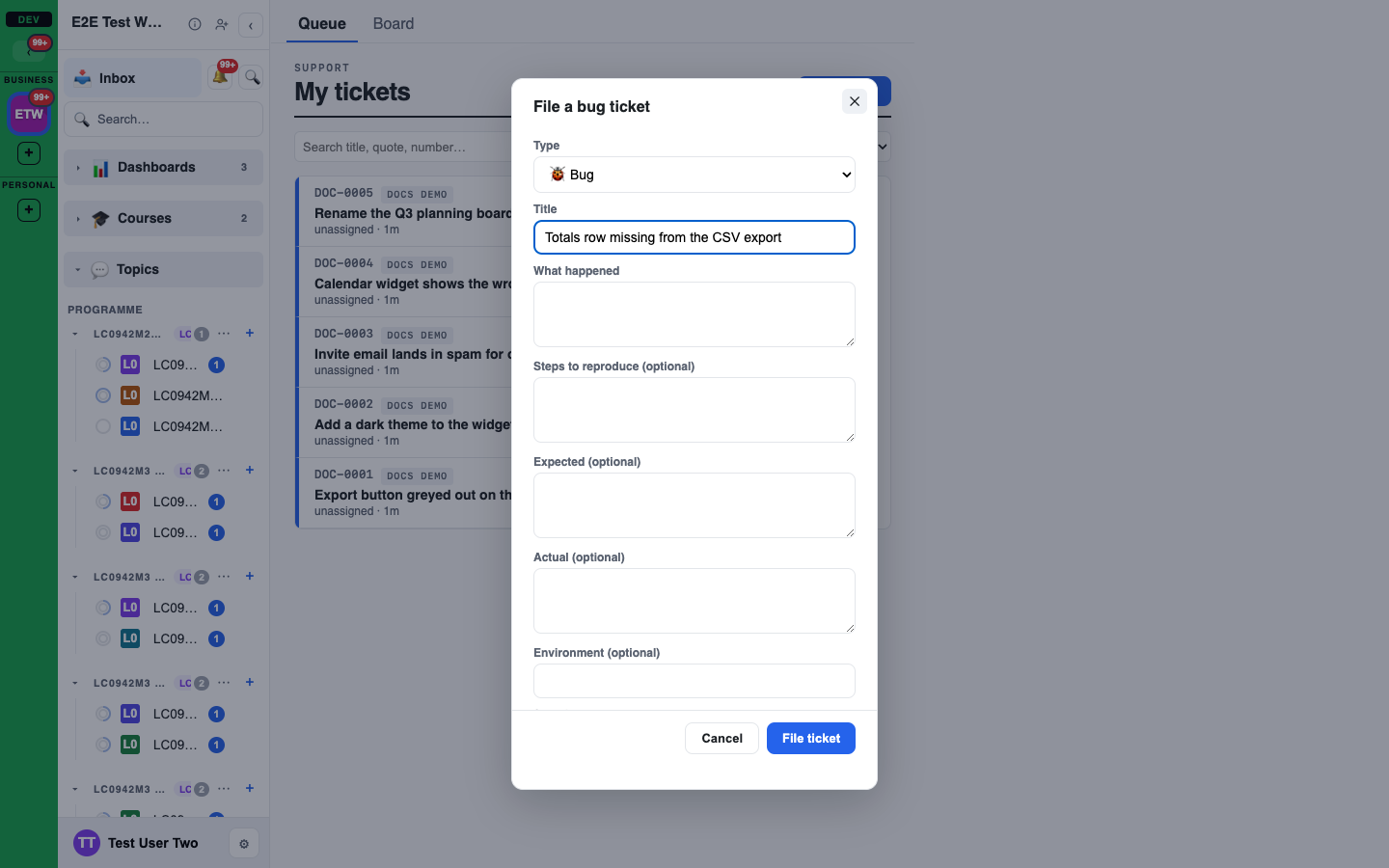
You can also add Steps to reproduce and pick a Severity: Low, Medium, High or Critical.
The ticket's number is shown with its type's prefix, for example SUP-0012 or BUG-0007. A bare number such as #12 means a Support ticket. If a ticket later changes type it gets a new number in the new type, and its old number still opens it.
Who can see a ticket
Support, Bug and Feature request tickets are private by default. They are visible to:
- the person who filed it (the reporter),
- the person it is assigned to,
- people who manage tickets (workspace Owner and Admin roles).
Tick Let everyone in this workspace see it when you file it, or later Visible to the whole workspace on the ticket, to share it with everyone. The reporter or a ticket manager can change this. Development and Epic tickets are visible to the whole workspace from the start.
If you cannot see a ticket, it does not appear anywhere: not in the queue, on a board, in search, or through a link. A link to it shows only "Unavailable asset".
The ticket's chat
Every ticket has its own chat. Open a ticket and you see the conversation on the left and the ticket's fields on the right (status, type, severity, assignee, sharing).
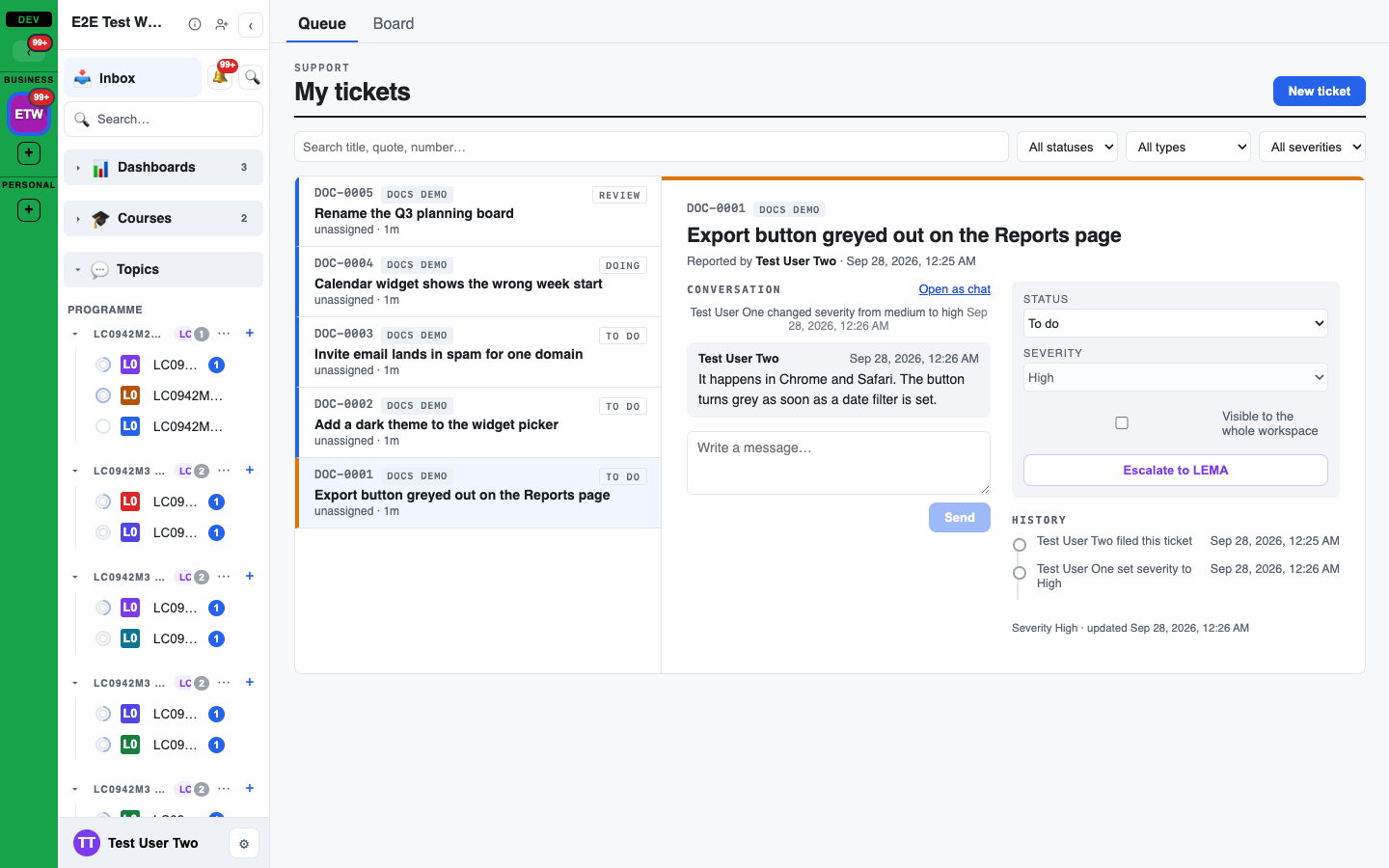
- Type in the box under the conversation to reply. Your reply is a chat message, so you can @mention people and link assets as in any chat.
- When someone changes the status, type, severity or assignee, a short system line appears in the conversation, for example "changed severity from medium to high". The full record stays in History under the fields.
- Open as chat opens the same conversation as a full-size chat.
The ticket's chat is sealed by the ticket: only people who can see the ticket can open its chat, and it never appears in the left bar's chat tree. It cannot be renamed, archived, closed or split into a SideChat. If a ticket stops being visible to you, its chat closes for you too.
The queue
Support > Queue lists every ticket you can see. Search by title, quote or number, and filter by status, type and severity. Mine only narrows the list to your own tickets. Your recent tickets also appear under Support in the left bar.
Moving a ticket on
Each type has a workflow: the states a ticket moves through and which moves are allowed from each one. For a Support ticket they are Open, Triaged, In progress, Fixed, Verified, Closed and Won't fix. A Feature request goes Proposed, Accepted, Planned, In progress, Shipped or Declined.
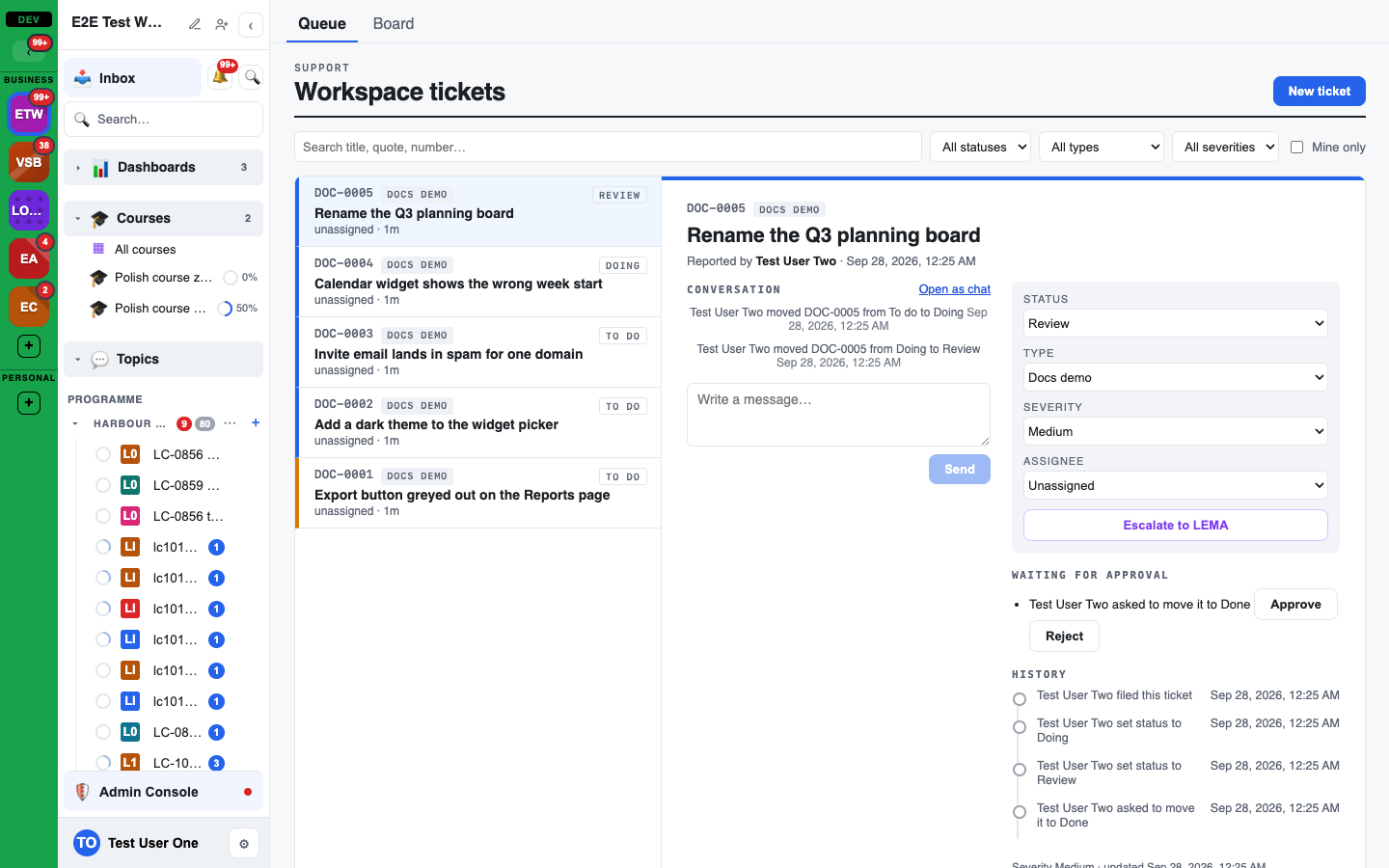
Move a ticket with the Status picker on the ticket, or on the board. The picker offers only the states you may move it to from where it is now. Some moves need more:
- Needs evidence: for example a Bug moving from Fixed to Verified needs a link (an https URL or an asset) showing the fix.
- Needs approval: the move waits until a ticket manager approves it. The ticket shows it under Waiting for approval, and on a board the card gets a Pending badge.
Who can change what:
| Change | Who |
|---|---|
| Move to another state | anyone the workflow allows for that move (by default the assignee and ticket managers; the reporter can close or reopen their own ticket) |
| Approve or reject a waiting move | ticket managers |
| Change the type | ticket managers |
| Severity and assignee | ticket managers |
| Share with the workspace | the reporter or a ticket manager |
| Reply in the ticket's chat | anyone who can see the ticket |
| Link evidence (another asset or a URL) | ticket managers, the reporter and the assignee |
Every change is added to the ticket's History, and the people involved are notified when a ticket is filed, assigned, changes state, gets a reply or is escalated.
Escalating to LEMA
The reporter or a ticket manager can press Escalate to LEMA to raise the ticket to LEMA platform support. The ticket then shows a LEMA flag, and LEMA support can reply on it and assign a LEMA owner.
Giving feedback on a message
Every message has a Feedback button (🗨) in its toolbar. On a phone, tap the message to show the toolbar. Use it to tell the LEMA team how an answer should have gone ("steering"), that an answer was wrong or unhelpful, that something is broken, or that something worked well.
The form has:
- A category: Steering, Wrong or unhelpful answer, Bug, Praise or Other.
- A comment in your own words.
- Include this message: sends the message text with your feedback. It is on by default for an agent's reply in an ordinary chat, and off for a person's message or a message in a private chat (Solo Chats, an interview or a Conversation). Turn it off and LEMA sees only your comment and details about the reply, not the text itself.
Pressing Send feedback creates a Feedback ticket (numbered FB-0001, FB-0002, and so on) and shows its number. The message then carries a small "Feedback sent" marker that only you can see.
Who sees it:
- You and the LEMA team only. Not your workspace's admins, not ticket managers and not other members. A Feedback ticket cannot be shared, assigned or re-typed from your workspace.
- Agents never see it. Feedback is not sent to the agent and does not change its next answer. LEMA uses it to improve the service.
With your feedback LEMA records the category, which agent, model and connection wrote the reply, the chat, the time, the app build and whether you were on the web or the iOS app.
Your feedback history. Open your user menu and choose My feedback, or filter Support by the Feedback type. Each Feedback ticket opens its own chat: your feedback is its first message, LEMA replies there, and you are notified of every reply. You can reply back in the same chat, and you can close your own Feedback ticket. Status changes (New, Triaged, Actioned, Closed) appear as lines in that chat.
If you delete or edit the original message, the copy of its text is removed from your Feedback ticket. If your account is deleted, your Feedback tickets are deleted with it.
Agents and tickets
You can ask an agent to file, find, move, re-type, update, comment on, link or escalate a ticket. The agent acts as you, with your permissions, and never sees a ticket you cannot see. Agents never see Feedback tickets at all: if someone wants to give LEMA feedback on an answer, point them to the Feedback button (🗨) in the message toolbar. In a chat with other people, an agent only names the tickets everyone in the chat can see; the rest are counted, not shown.
What an agent can do:
- File a ticket of any type, with that type's fields. It quotes your own latest message word for word, as the 🎫 action does.
- Find and read tickets you can see.
- Read a board (the columns, counts and cards) to answer questions like "what is in Review?".
- Move a ticket one step at a time (one move per turn).
- Change a ticket's type, if you manage tickets.
- Comment, link evidence, set severity or assignee within your rights.
- Escalate to LEMA.
When the agent asks you first. The agent shows an approval card in the chat, saying why, and waits for your yes before it:
- moves a ticket, unless it is a forward move that does not close the ticket, on a ticket you filed or are assigned to,
- closes a ticket, including your own,
- changes a ticket's type (the card says if the new type makes the ticket visible to the whole workspace),
- escalates a ticket to LEMA,
- attaches evidence it found itself,
- does any of these in a turn where it has read something untrusted, such as the text of a ticket or a web page. The card then also names what it read.
A move you approve is only made if the ticket is still where it was when the agent asked. If someone moved it in the meantime, nothing happens and the agent tells you.
When an agent reads a board in a chat with other people, it shows only the cards everyone in the chat can see. Counts come from those cards, and the rest are one total for the whole board, never named or split by column. For each card it sees only the reference, title, state, severity, assignee and column. See Agents and boards.