
Personal & Solo Chats
Not every conversation is a group session. You have a private space of your own, you can message one person directly, and you can open a chat with a single agent.
Your private chats
Every person has a Solo Chats area in each workspace. It starts with one chat, Solo Chat: you and an agent. Use it to think out loud, ask something, draft, and keep notes. "Solo Chats" is the default name; your workspace may use its own word for it.
- It is created for you when you join a workspace, including by invitation.
- It belongs to your personal group, so adding you to another group gives nobody else access to it.
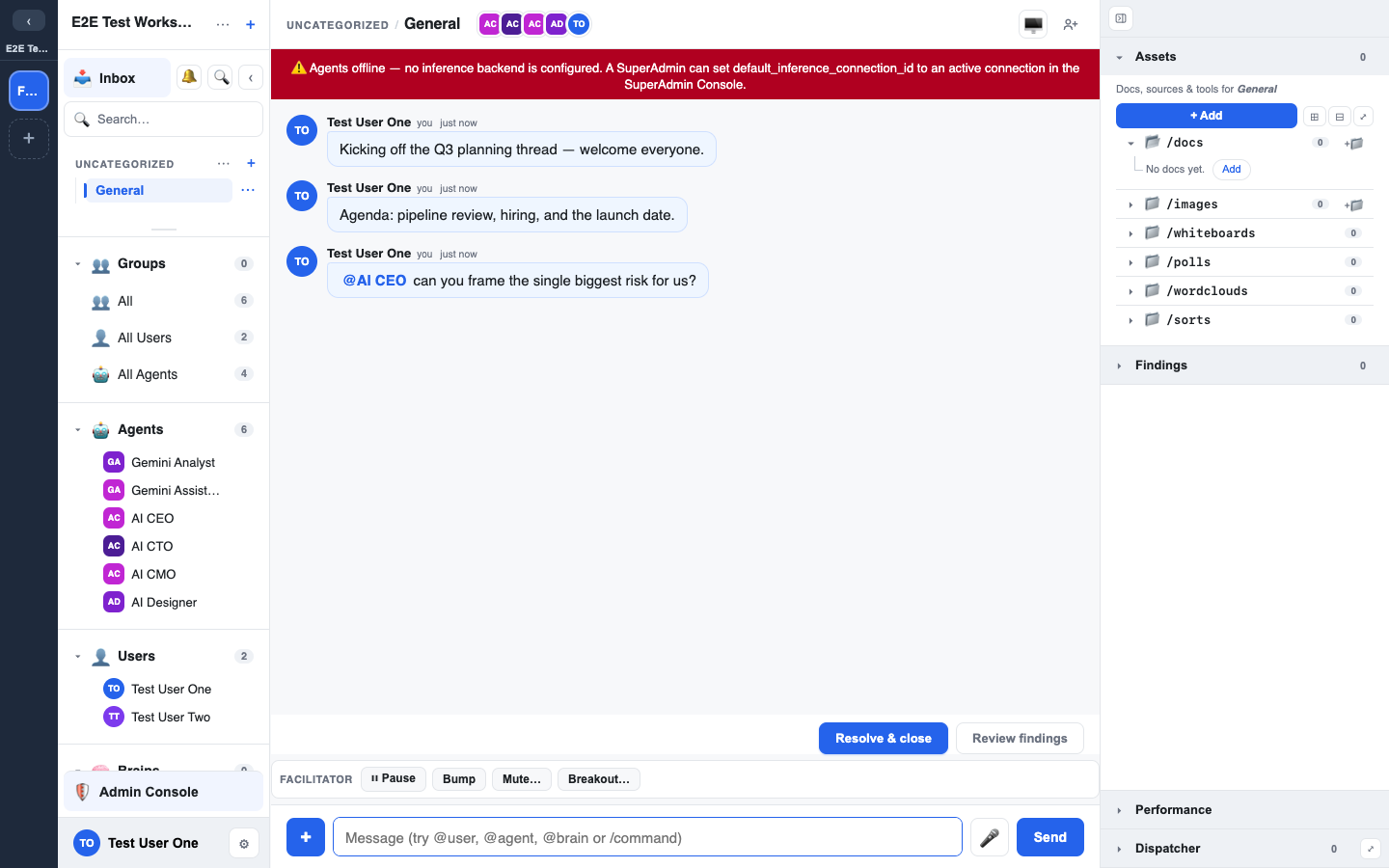
Messaging a person
To start a direct message, use Message and the person's first name. You find it in three places:
- A person's profile: click their avatar anywhere, then press the Message button on the card.
- The Users section of the left sidebar: open the … menu on a person's row.
- Chat details and Members: the Message button on a member's row.
You are taken to your most recent conversation with that person. If there is none, one is created. You are never offered Message on yourself.
Direct messages in the sidebar
Direct messages sit in their own Direct messages block at the top of the left sidebar.
- Each person you have a conversation with is one row, with their avatar and current name.
- Your conversations with that person are listed under their name.
- Press + on a person's row (New conversation with their name) to start another conversation with them. You can keep several going, one per subject.
- A conversation starts as "New chat" and names itself from what you talk about.
Rules for direct messages
- Two people: a direct message is between you and one other person.
- One agent: one agent can be brought in. It replies only when you @mention it.
- Archive, not delete: a direct message cannot be deleted. Either person can archive it and unarchive it.
- If the other person leaves the workspace, their name is followed by "(left)".
Messaging an agent
In the Agents section of the left sidebar, an agent's name is a button: click it, or tap it on a phone, to open a private chat with that agent. The same action is Message at the top of the agent's … menu.
- If you already have a private chat with only that agent, it opens. An archived one is restored.
- Otherwise a chat is created for you with that agent in it.
Who is offered it:
- Admins and Owners can start a chat with any agent that can run.
- Everyone else is offered it for an agent they already have a private chat with, such as the agent in their Solo Chat.
- Guests are not offered it.
Some agents are never offered: an agent that is switched off, the Dispatcher, and the Interviewer, which only speaks when it is mentioned in an interview.
Where the name is not a button for you, click the agent's avatar to see its profile, and @mention the agent in a chat it belongs to.
Who can see your private chats and direct messages
- Other members cannot see them. Adding you to a group does not give anyone else access.
- Facilitators, Admins and Owners of the workspace can. They can read your private chats and direct messages, and post in them on your behalf. Anything they post carries their own name. A workspace can have this turned off, in which case these chats are visible only to their owners.
- A notice in the chat. If your workspace has the notice turned on, a banner in the chat reads "Facilitators can read this chat."
- Platform support staff can open them only through support access: a support person temporarily acts as you to fix a problem. Each support session is recorded in the audit log with who did it, when, and the reason they gave. It ends by itself.
- Your workspace Owners and Admins can review the support access log (Admin > Workspace). It lists every support session on a member of the workspace: when it happened, who did it, the reason, and how long it lasted. It does not show what support looked at.
- If your workspace has Notify users when support accesses their account turned on, you get a notification after a support session on your account ends, with the date and the reason.
Keeping private findings private
Anything you send to a Brain from a private chat goes to a Brain with its own access rules. Send it to a Brain only you can read and it stays private. Send it to a shared group's Brain and you are choosing to share it. See Groups and Findings and decisions.