
Checklists
A checklist is a list of things a conversation needs to cover: the questions for an interview, the steps before an event, the decisions a meeting has to reach. It looks the same everywhere; only the controls change with your role.
Add one from the composer's + menu or the Assets + Add menu. (If your admin has turned checklists off, they aren't in either menu.)
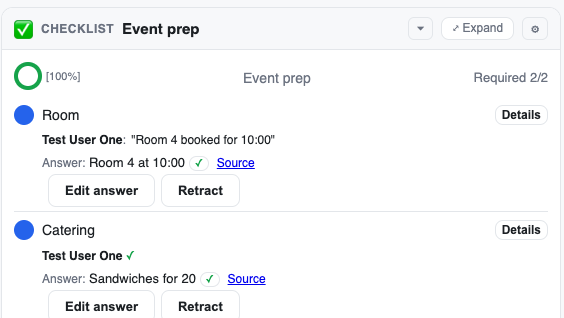
Items and Details
Every item has a short label and Details: what counts as done, and optionally what doesn't count. The Details are one click away on every row (Details).
- Ticking: when you tick an item you see its Details first ("Meets the Details? Add a note"). Agents judge against the same Details.
- Who ticked it: every tick shows who or what did it. A person's tick reads like
Test User One: "Room 4 booked for 10:00". An agent's tick quotes the turn it came from, with a link to that turn. - Unticking never deletes anything; it records a correction.
- Needs review: if someone changes an item's Details after it was ticked, the item turns amber ("Details changed after this was ticked") and stops counting as done until someone re-confirms it.
- Required and optional: optional items are tagged "Optional".
Answers
A ticked item can carry an Answer: the short answer or decision, separate from the quote that proves it, with a link to its Source.
- An Answer an agent drafted is shown in italics with a Draft chip until a person confirms it (Confirm or Edit). Only confirmed Answers count.
- In an interview you see and can correct your own Answers, never anyone else's.
- Confirmed Answers can be sent to a Brain by a facilitator. See Checklists & interviews.
Shared or per participant
A checklist is either:
- Shared: one list for the whole conversation, or
- Per participant: one list for each person on its participant list. You see your own row, plus whether the group as a whole is done.
The people running the checklist can switch between the two at any time. The chat is told, and current ticks carry over.
Progress rings
A checklist that controls conversation completion shows progress as rings: the outer ring for required items, the inner ring for optional ones. You'll see them on the conversation's row in the left bar, in the checklist header, and on the Topic's checklist page.
- Hover a ring for the count, for example "Required 4 of 6. Optional 1 of 3".
- Grey means not started, colour means in progress, green means complete.
- The percentage counts required items only and never rounds up to 100%.
- An ordinary checklist (one that doesn't control completion) shows plain counts instead, so a ring always means "this gates completion".
Completing a conversation
If a conversation's checklist controls completion, the conversation can't be completed while required items are open or need review. The Resolve button is greyed out and says why, for example "Can't complete yet: 2 required checklist items open, 1 needs review". Every ticked required item also needs a confirmed Answer.
A facilitator can override this with Complete anyway; see Checklists & interviews.
Closed and cancelled checklists
- Closed: read-only, but it still counts.
- Cancelled (with a reason): read-only and no longer counts. The header reads "Cancelled: reason".
Both are announced in the chat.
Checklists you can't see
If a checklist belongs to a Topic you don't have access to, you see a locked card titled "Checklist" instead. It never shows the Topic's name or any counts.