
Topics and conversations
The Topics section of the left sidebar is where your conversations live. A Topic holds the conversations about one subject, so related chats stay together and are easy to find again.
Your workspace can rename "Topic", "Chat" and the other nouns, so the words on your screen may differ from the ones here.
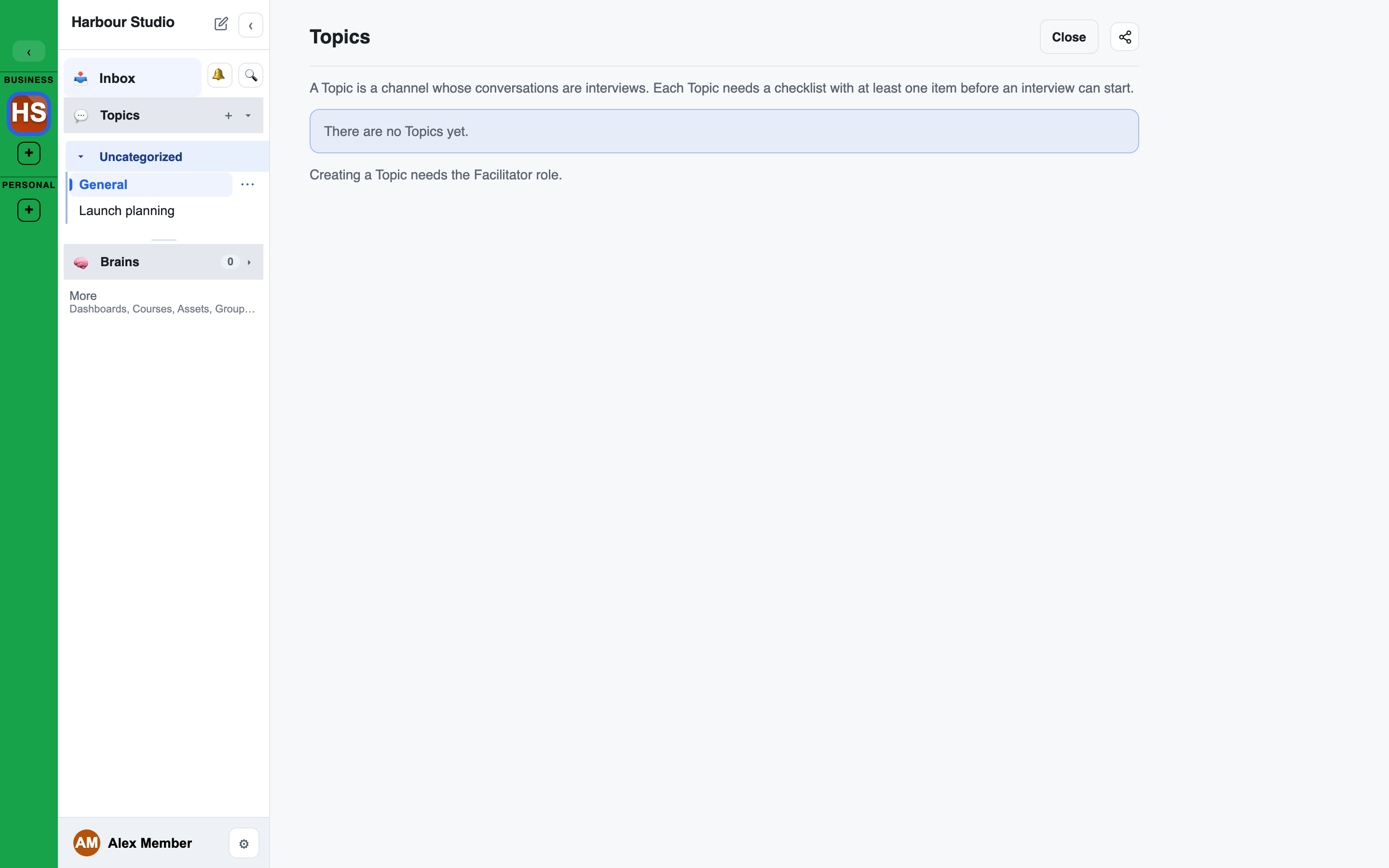
The Topics section
Each row under Topics is a Topic. Its conversations are listed beneath it, and a SideChat sits under the chat it came from.
Two controls in the section header change what is listed:
- Open, Badged or All: show only what is open, only what has something waiting for you, or everything.
- Collapsed or Expanded: fold every Topic to one row, or show their conversations.
The … menu on the header has Browse topics, a page listing every Topic you can see, by group.
A conversation with a checklist that controls its completion shows a thin progress bar under its name. See Checklists.
Opening a Topic
Click a Topic's name.
- If the Topic has an interview for you, you land in it, under Your interview. See Taking an interview.
- Otherwise you see the Topic's page: a breadcrumb back to the workspace, then All chats in this Topic, one card per conversation you can see. Click a card to open it.
Click a conversation's own row to go straight to it.
Starting a conversation
Press + on a Topic's row to start a new chat in it. The new chat opens straight away, and names itself from what you talk about if you do not name it.
You can start a conversation in any Topic where you are allowed to post. If the + is not there, ask a Facilitator.
The New chat button in the sidebar's header does the same for the Topic of the chat you have open.
Starting a Topic
Press + on the Topics header (it is always shown). The New Topic form asks for a Title, an optional Goal (what the Topic is for) and optional Members (the groups who can see it). Create opens the new Topic's chat. If an admin picks no members, only admins can see it until members are added. The Browse topics page's Create Topic form also lets you set a Topic group and a description.
Interviews (Topics with an interviewer agent or a checklist) usually have their own Interviews section above Topics; its + is New interview. See Running interviews.
Whether you are offered these depends on your role. See Who can do what.
The menu on a Topic
Each Topic's row has an options menu:
- Expand or Collapse
- Hide from my list: removes the Topic from your own sidebar. Nobody else's view changes.
- Sort by: Newest First, Alphabetical or Manual. Dragging a Topic up or down changes the order in your own sidebar only.
- Topic checklist: the checklist every interview in the Topic follows.
- Rename, Archive and Delete, for people who manage the Topic.
Delete moves the Topic to the Trash, with Undo on the message that confirms it. If the Topic still holds chats, you choose: Delete with them moves its chats to the Trash too, and Detach moves only the Topic, leaving its chats where they are, marked Deleted source. See Trash and recovery.
Topics and interviews
A Topic can carry a checklist. Interviews in the Topic follow it, and each person's answers stay in their own conversation.
A plain channel that is not a Topic yet has no checklist, so an interview cannot start there. The checklist screen says so and offers Make this a Topic to people who are allowed to. Everyone else reads "A facilitator can make it a Topic."
Programme weeks
In a workspace that runs a week-by-week programme with week pages turned on, each week is one row under Topics, named "Week N" and the week's subject, in week order. Your own conversation for the week is listed first, as "Your Week N".
Clicking the week opens its page, with three tabs:
- Conversations (Interviews for facilitators): the week's conversations and how far each has got.
- Checklist: the items the week covers, with their Answers.
- Results: the week's checkpoints and gates, from the evidence so far.
Answers in the shared conversation count
When founders answer a Topic's questions in the Topic's shared conversation, rather than in their own interview, each founder's own answers count toward that founder's progress on the Topic's checklist. Another founder's words never count for you. Facilitators can turn this off for the workspace.
Muting a conversation
Open the menu on a conversation's row and choose Mute, then how long: 1 hour, 4 hours, 8 hours, 2 days or 5 days. Choose Unmute to end it early. A mute applies on the browser or phone where you set it.
Closed, archived and deleted conversations
A conversation can be closed with a summary, archived, or moved to the Trash. See Trash and recovery and Findings and decisions.