Getting started
Signing in
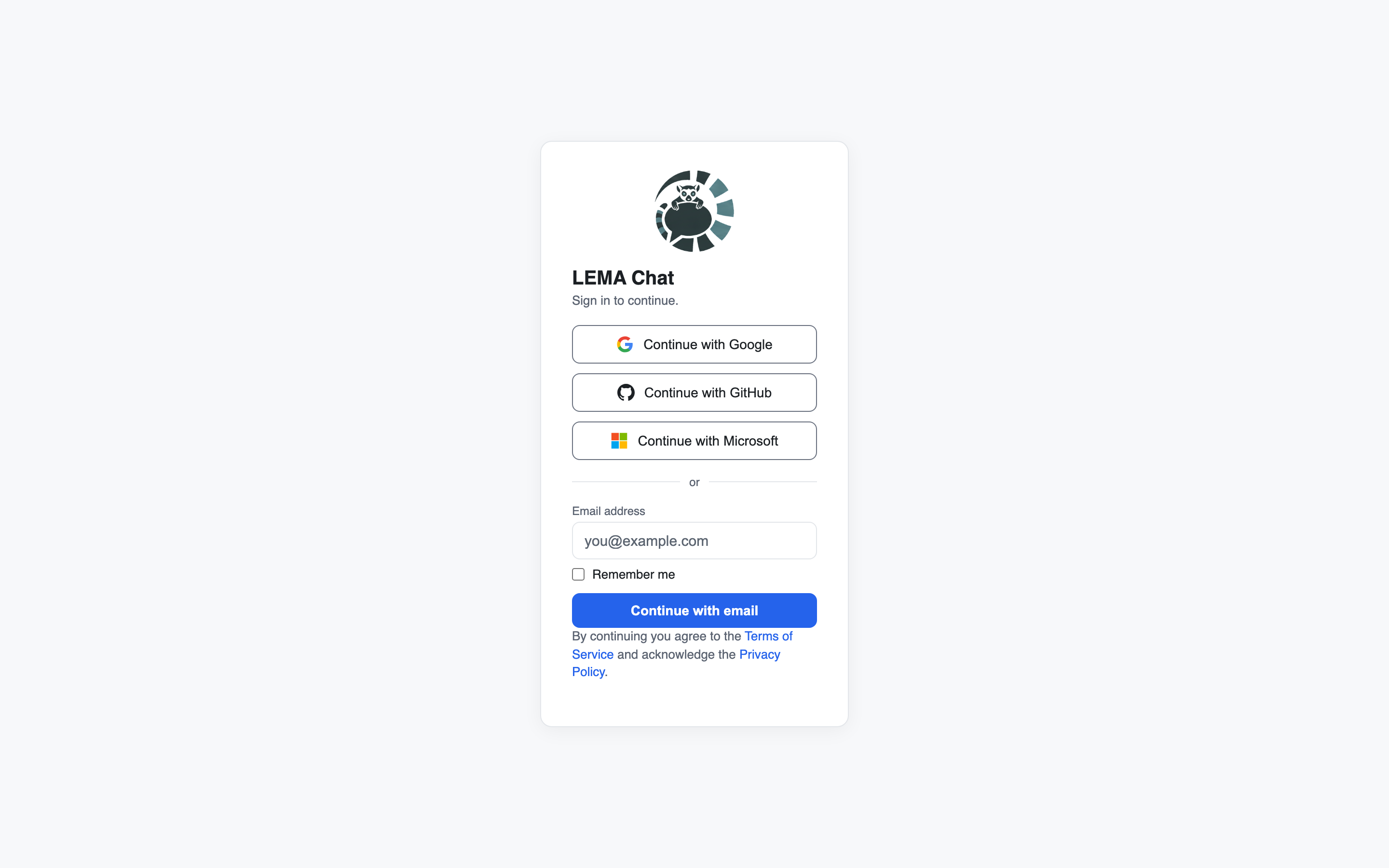
On the sign-in screen, choose Continue with Google, Continue with GitHub or Continue with Microsoft, or enter your email and press Send magic link. There is no separate password to manage.
If an admin invited you, you land in that workspace once you accept. If you signed in without an invite, you can ask your team for one or create a workspace of your own.
See Signing in for each step.
Finding your way around
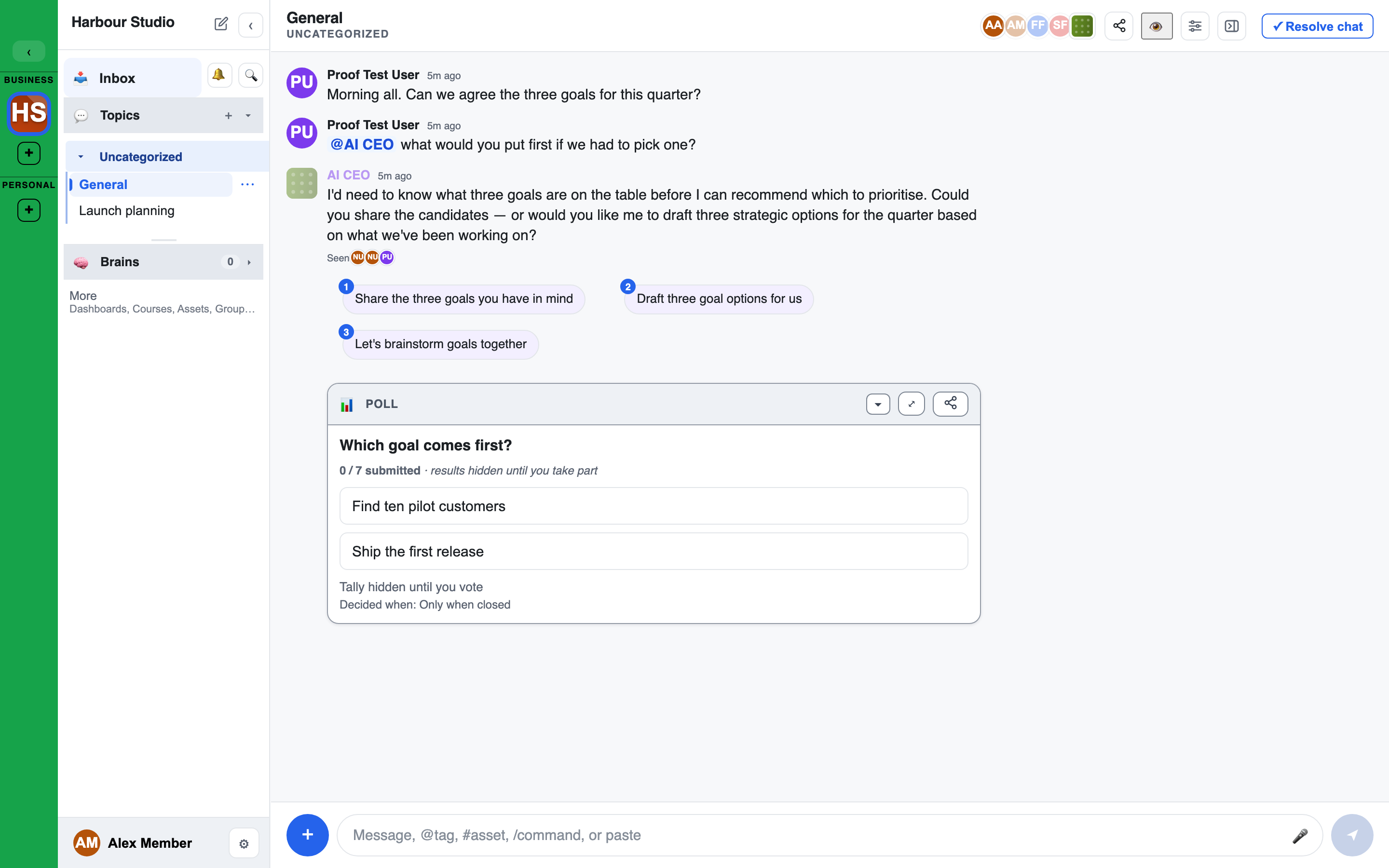
The screen has three regions:
- Left sidebar: your workspaces on the rail at the far left, then the sections of the workspace you are in.
- Centre: the main area. Usually that is the chat you have open, with its messages and the box where you type.
- Right panel: what belongs to the current chat, such as its docs, files and findings.
The left sidebar
The sidebar's header names the workspace. Click the name for the workspace overview. The pencil button beside it, New chat, starts a chat straight away: in the Topic of the chat you have open, or else in the first Topic you can use. (In a workspace that renames chats, the button uses its word.) Editing the workspace itself is on the workspace overview.
Below it are Inbox, the Notifications bell and Search. See Search & notifications.
Below them are the sections, in this order:
| Section | What a row opens |
|---|---|
| Dashboards | A dashboard. See Dashboards |
| Courses | A course. See Courses |
| Topics | A conversation, or a Topic's own page. See Topics and conversations |
| Brains | That Brain's page |
| Assets | The workspace-wide Assets library |
| Groups | A group and its members |
| Agents | An agent's avatar opens its profile. Its name opens a chat with it, where that is offered to you |
| Users | A person's profile |
| Communities | A community channel. See Communities |
| Applications | The outside programs your workspace links to. Each opens in a new tab |
| Support | Your tickets. See Support tickets |
- Each section opens and closes, and remembers how you left it.
- Clicking a section's name to open it also opens that section's overview page in the centre, where it has one (for example, Brains opens the Brains overview when you can manage Brains). Closing a section, or using its arrow, only folds it.
- Communities appears once you turn on Show Communities in Settings.
- The Topics section has a + on its header, always shown, to start a new Topic when your role allows it.
- Interviews have their own Interviews section above Topics (unless your workspace or your Settings → Navigation keeps them in Topics). Its + starts a New interview when your role allows it.
- In the Simple interface only Topics and Brains are shown. A More row reveals the rest. See Settings and your view.
- Your workspace can rename its sections, so the names you see may differ.
- A conversation or course with progress to track shows a thin progress bar under its name.
Your name and the ⚙ Settings button sit at the bottom.
The centre
A row in most sections opens a full page in the centre instead of a chat: a Brain, a course or lesson, a community channel, a dashboard, the Applications cards, or the Assets library. Back, Esc or Close returns you to what you were looking at before.
The right panel
The right panel is shown beside a chat. Its sections:
- Assets: the chat's docs, files, whiteboards and widgets. See Files & assets.
- Checklist: shown in a conversation that has one. See Checklists.
- Findings: what the conversation has produced that is worth keeping. See Findings and decisions.
- Dispatch & Performance: how the last agent replies were routed and how long they took. See Dispatch & performance.
Show or hide the panel with the panel button in the chat header.
Switching workspace
Each workspace you belong to is a tile on the rail at the far left. Click a tile to switch to it. A number on a tile is what is waiting for you there.
A tile shows the workspace's picture or its initials. The initials come from the workspace's name unless a Facilitator, Admin or Owner has set them in the workspace's avatar. Two of your workspaces never show the same initials: a later one gets a longer label. The tile looks the same everywhere it appears.
Your first message
Click a conversation in the left sidebar, type in the box at the bottom, and press Enter to send. The empty box hints at what you can do:
Message, @tag, #asset, /command, or paste
- Type @ to mention a person, an agent, a group or a Brain.
- Type # to tag a file, doc or whiteboard. See Asset tags & links.
- Click + to upload files or add a whiteboard, doc or widget.
- Type / to open the command menu (polls, whiteboards, deliberation and more).
Your workspace admin can change the hint text.
Everything you send is stamped with your name, the time, and the fact that a human wrote it. An agent's messages are stamped agent in the same way. That record is what lets the team later ask "why do we believe this?".
Settings
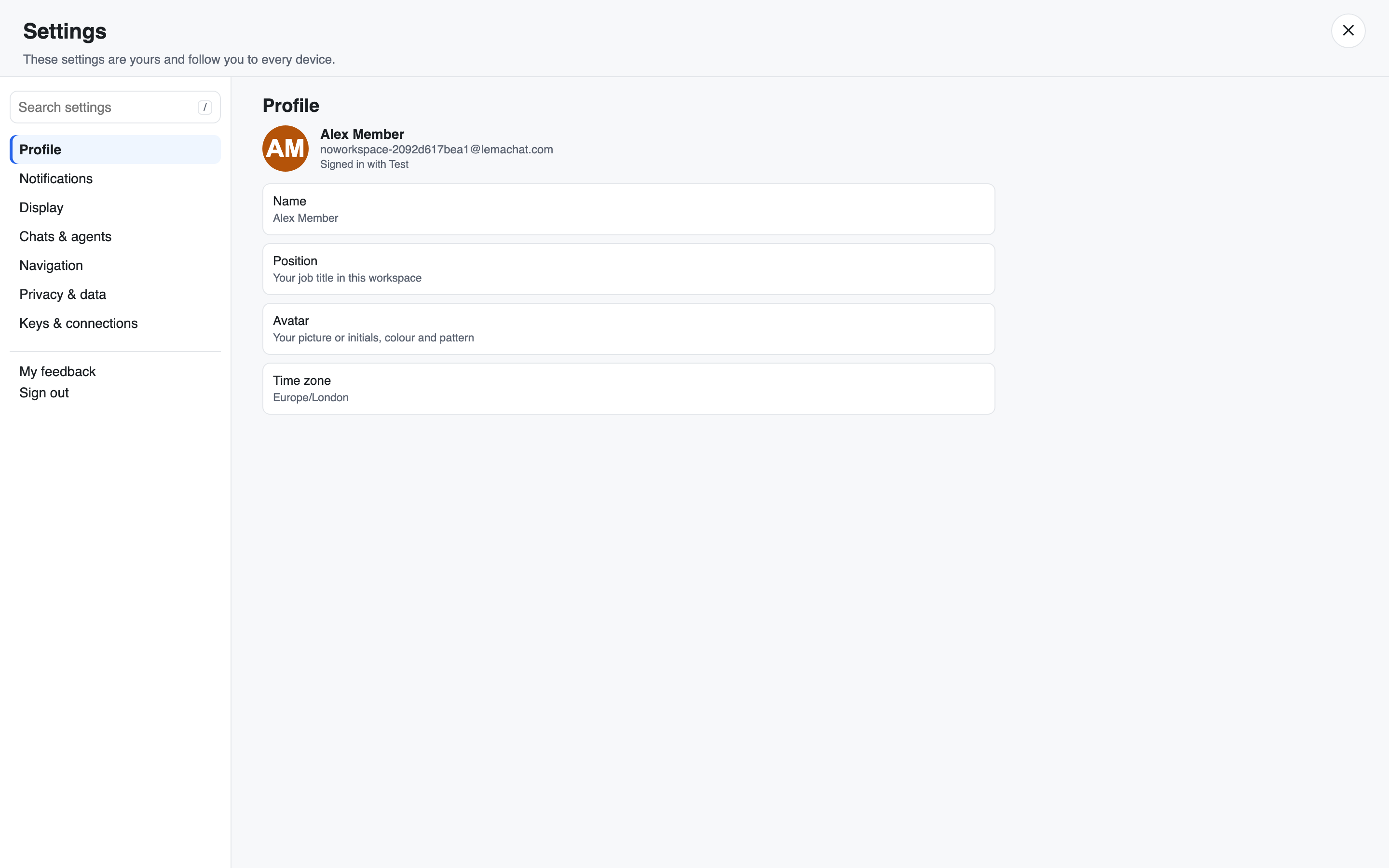
Click your name or the ⚙ Settings button (bottom-left) to change your display name, avatar and time zone, choose how and where you are notified (including by email), choose how messages look, and manage your keys. Settings is a full page with its own address, /me. See Settings and your view.