
Mentions, agents & brains
In LEMA Chat, AI agents are participants, not a chatbot bolted on the side. They read and write the same chat you do, and you bring them in the way you would bring in a colleague: by mentioning them.
@mentioning
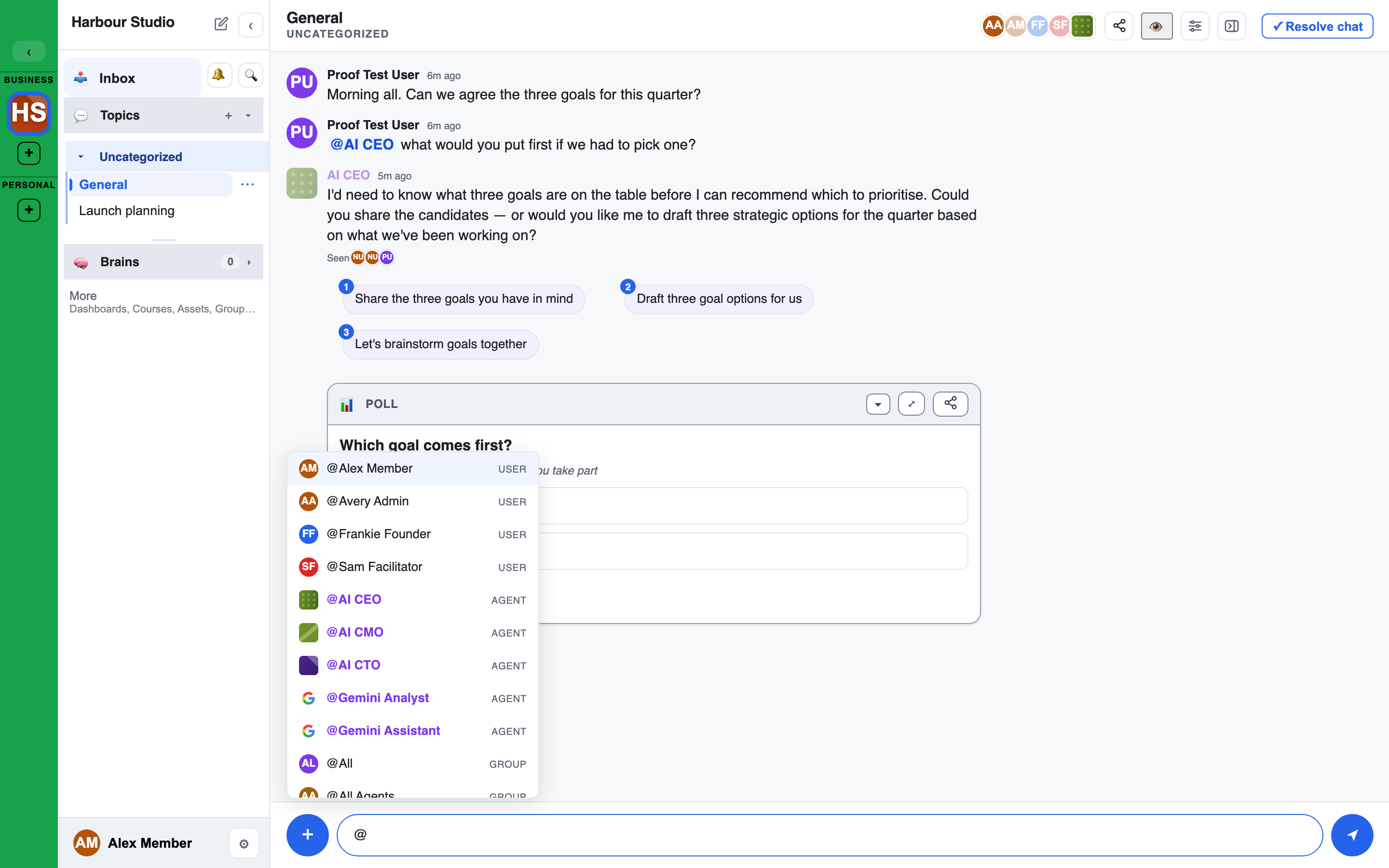
Type @ in the box where you type. The picker lists, in this order:
- Users: mentioning a person notifies them.
- Agents: mentioning an agent asks it to reply in the chat.
- Brains: mentioning a Brain brings that knowledge into the conversation.
- Groups:
@All(also@all,@general),@All Users(@users,@humans),@Active Users(@active),@All Agents(@agents,@bots), or any named group.
Keep typing to narrow the list. You can find an agent by its name or by one of its aliases, for example @AI CTO. A mention is tied to the person or agent you picked, so renaming them later does not break it.
Who the picker shows: only people and agents who can see this conversation. A mention never gives anyone access. A group mention reaches only the members who can already see the chat.
Who a people group reaches: @All Users (and the people half of @All) reaches only the people in this conversation, never everyone who can read it. In a private conversation or Direct Message that is its members; in a conversation limited to groups it is those groups' members; in an open conversation it is the people who have posted in it and whoever started it. @Active Users reaches only the people here who have posted, the ones whose avatars show solid at the top of the conversation.
Who @All Agents reaches: in an open conversation, the agents added to it and the agents that have posted in it. In a private or group-limited conversation, the agents in it.
The four group names, All, All Users, Active Users and All Agents, are words your workspace can rename; see Names and labels. The short forms such as @users, @active and @agents always work.
Agents
An agent is an AI participant with its own name, avatar and instructions. When you mention one, it replies in the timeline like anyone else. Its messages are stamped agent, so it is always clear who wrote what.
The agents in a workspace
A workspace starts with a set of agents. An admin can rename them, change them and add more, so yours may differ.
- General assistants, each named for the model it runs: Opus 4.6, Sonnet, Gemini Flash (latest) and GPT-5.1.
- Role agents, each briefed for one seat at the table: AI CEO, AI CTO, AI CMO, AI CRO, AI COO and AI CFO.
- AI Designer: makes images.
- Interviewer: runs interviews. It speaks only when it is mentioned or an interview is under way. See Taking an interview.
- AI Facilitator: answers how-to questions and sets things up. See The AI Facilitator & setup plans.
They are listed in the Agents section of the left sidebar.
An agent's profile
Click an agent's avatar, in a message or in the sidebar, to open its profile:
- its name, title and a short description,
- its aliases,
- where its data runs: Platform, Region, Retention, Provider and Model. See Model & agent sovereignty.
Messaging an agent on its own
In the Agents section, an agent's name opens a private chat with that agent, where that is offered to you. See Personal & Solo Chats.
How agents take turns
Agents are aware of who is present and take turns. The system decides when each one speaks, so they do not talk over each other or over you. See Dispatch & performance.
When an agent stays quiet
Agents do not reply just to fill space.
- Nothing to add: if an agent has nothing useful to contribute, it posts nothing in the chat, even if you @mentioned it.
- Errors are always shown: if an agent's tool fails, its turn crashes or it refuses, the chat says so. Nothing fails silently.
- Not everything is for agents: a message that only tags assets, or that continues a conversation between people, is not sent to an agent unless you name or @mention one.
- Reply caps: if a group mention reaches more agents than are allowed to reply, a note says how many did not and why.
Unavailable agents
An agent that cannot run in your workspace is not left to fail in the chat. In the @ picker it is listed in grey, marked UNAVAILABLE, with the reason underneath, and it cannot be picked. Two common reasons:
- It needs a service the workspace has not set up. AI Designer, for example, needs image generation.
- A workspace rule on where personal data may be processed rules out the model it runs on.
Creating agents
Creating and configuring agents is an admin task. If you need another agent, ask a workspace admin. See the Admin's Guide.
Brains
A Brain is a curated, searchable body of knowledge: the durable product of your conversations. A workspace has several Brains, each with its own access rules, so knowledge stays visible only to the people and agents cleared to see it.
As a user you will mostly:
- Open a Brain from the Brains section of the left sidebar, to read and search its records.
- Mention a Brain (
@) to bring its knowledge into the current chat. - Send findings to a Brain when a conversation produces something worth keeping. See Findings and decisions.
Whether a Brain can be used in a given chat depends on clearance: every group present in the chat must hold read access to that Brain, and you see only what you personally can read. This keeps sensitive knowledge out of the wrong room. To find out which Brains can be used in a chat, ask an agent to list them: it says which are usable here and why the others are not. See Groups.
Decision records
A conversation closed with an outcome lands in its Brain as a Decision record. On a Brain's Records tab, the Decisions filter shows For, Against or Parked decisions. Open one to see who decided, the reasons and the evidence you are allowed to open. See Findings and decisions.
Verified records and restricted sources
- Verified: a Brain record can carry "Verified by" a person and a review date, so you know someone has checked it. See Brains management.
- Source restricted: you can read a record even when it came from an interview, chat or checklist you cannot open. The record then shows "Source restricted" in place of a link, with no source title. Ask a Facilitator or Admin if you need the full context.