
Settings and your view
Settings holds everything that is personal to you: your name and avatar, notifications, how messages look, navigation, your keys and your data.
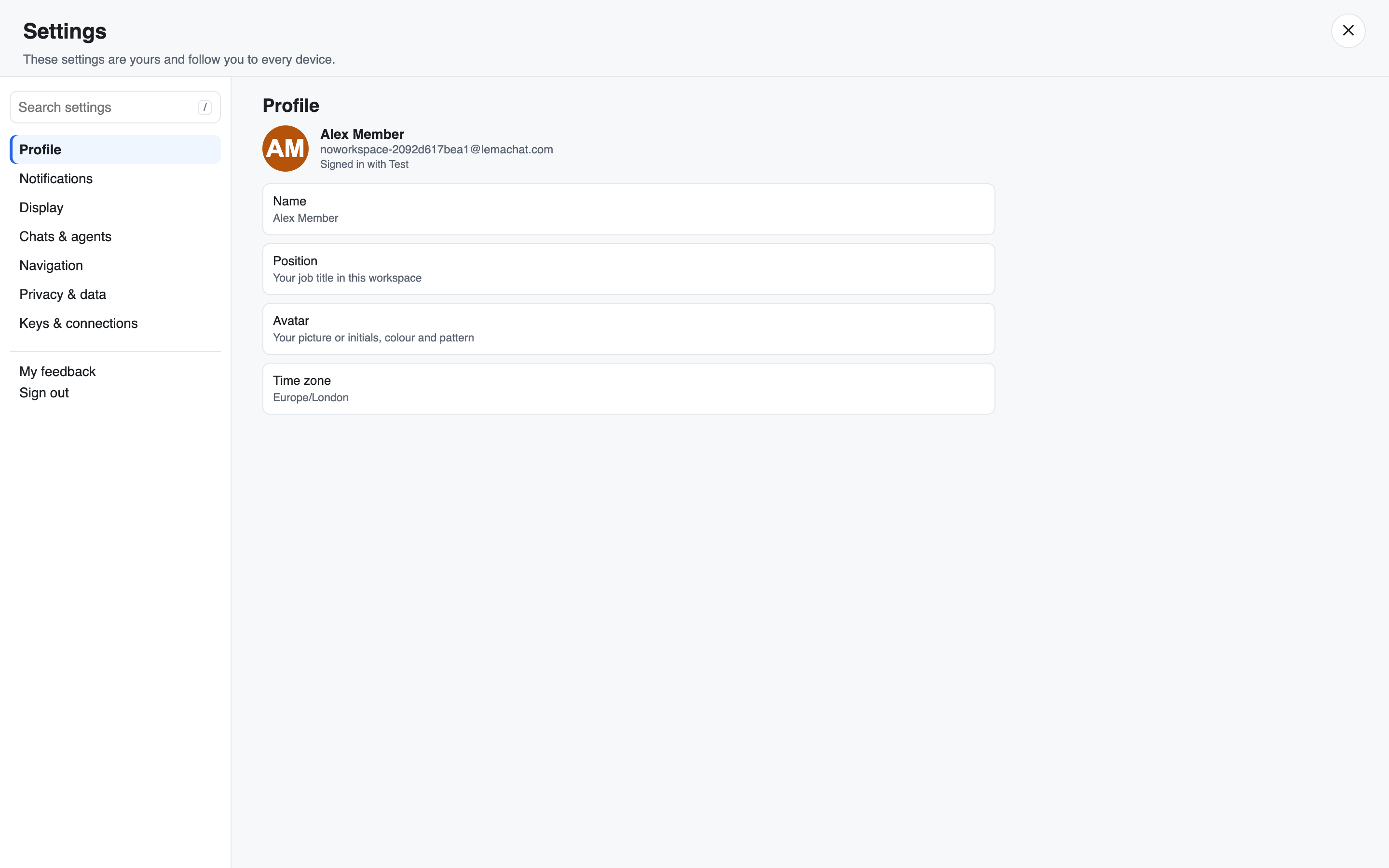
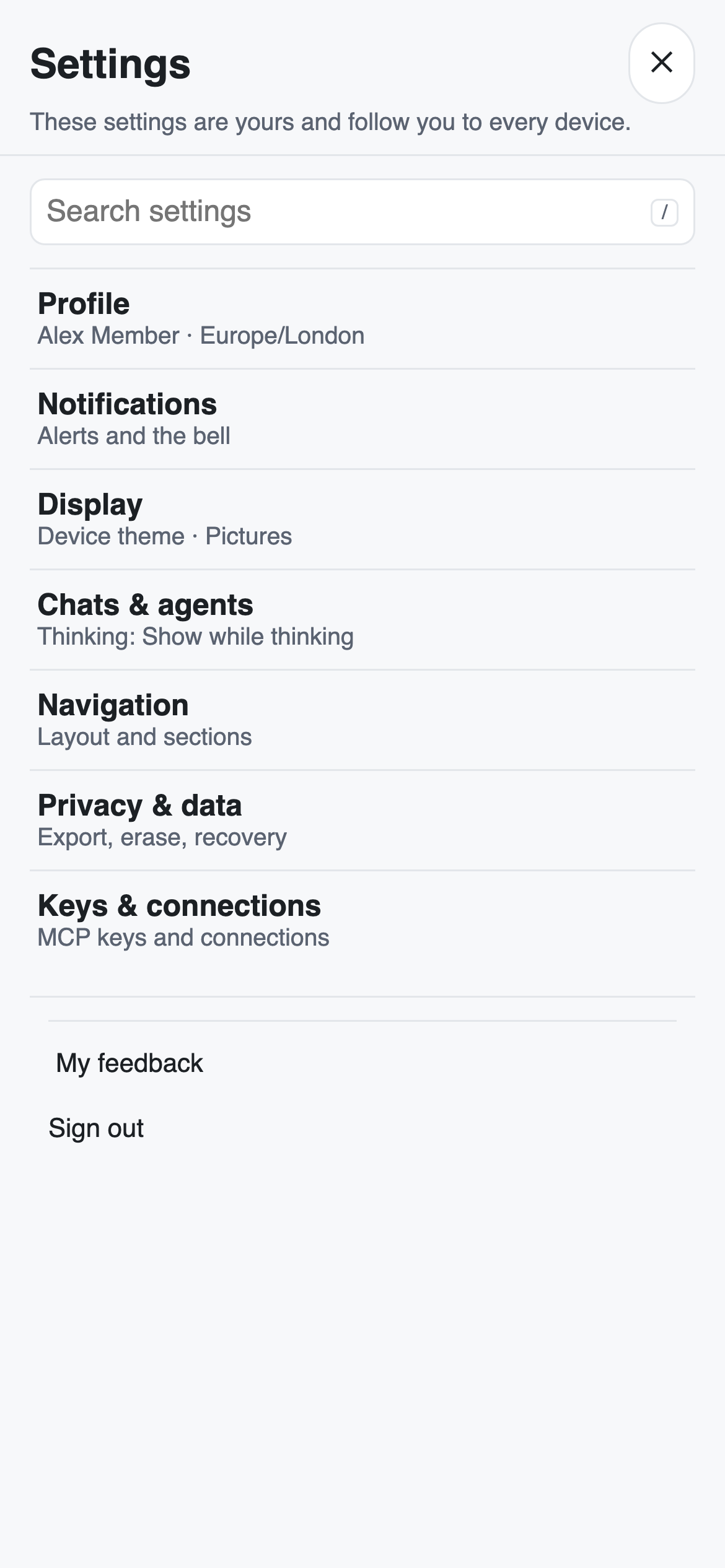
Open it from the bottom of the left sidebar: click your name, or the ⚙ Settings button beside it. Settings is a full page. On a computer the sections are listed on the left; on a phone you see the list of sections first, each with a short summary of its current values, and a section opens full screen with a ‹ Settings button to go back. Browser Back steps back through the sections you opened.
Each section has its own link, so you can share or bookmark it:
| Section | Link |
|---|---|
| Profile | /me |
| Notifications | /me/notifications |
| Display | /me/display |
| Chats & agents | /me/chats |
| Navigation | /me/navigation |
| Privacy & data | /me/privacy |
| Keys & connections | /me/keys |
| Admin tools (Owners and Admins) | /me/admin |
The sections use your workspace's own words: in a workspace that calls chats "Topics", the section is Topics & agents.
Search: type in Search settings, or press / to jump to it. It finds settings by name and by the words people use for them, for example "dark mode", "API" or "delete account".
Your settings follow you
Settings says so at the top: "These settings are yours and follow you to every device."
- View settings are saved to your account. Change one on your laptop and it is the same on your phone, and in every workspace you belong to.
- Layout is remembered separately for each kind of device. See Layout on each device.
- The Notifications switch is turned on or off per browser or phone. The notification sound and your email choices are saved to your account.
Profile
Your avatar, name, email, how you signed in and your roles in this workspace.
- Name: Change name… sets your display name, shown on your messages everywhere.
- Position: Change position… sets your position in this workspace.
- Avatar: Edit avatar… opens the avatar editor. See Avatar colours and chat members.
- Time zone: Change…, then search by city or region, or press Use this device's time zone, then Save.
Notifications
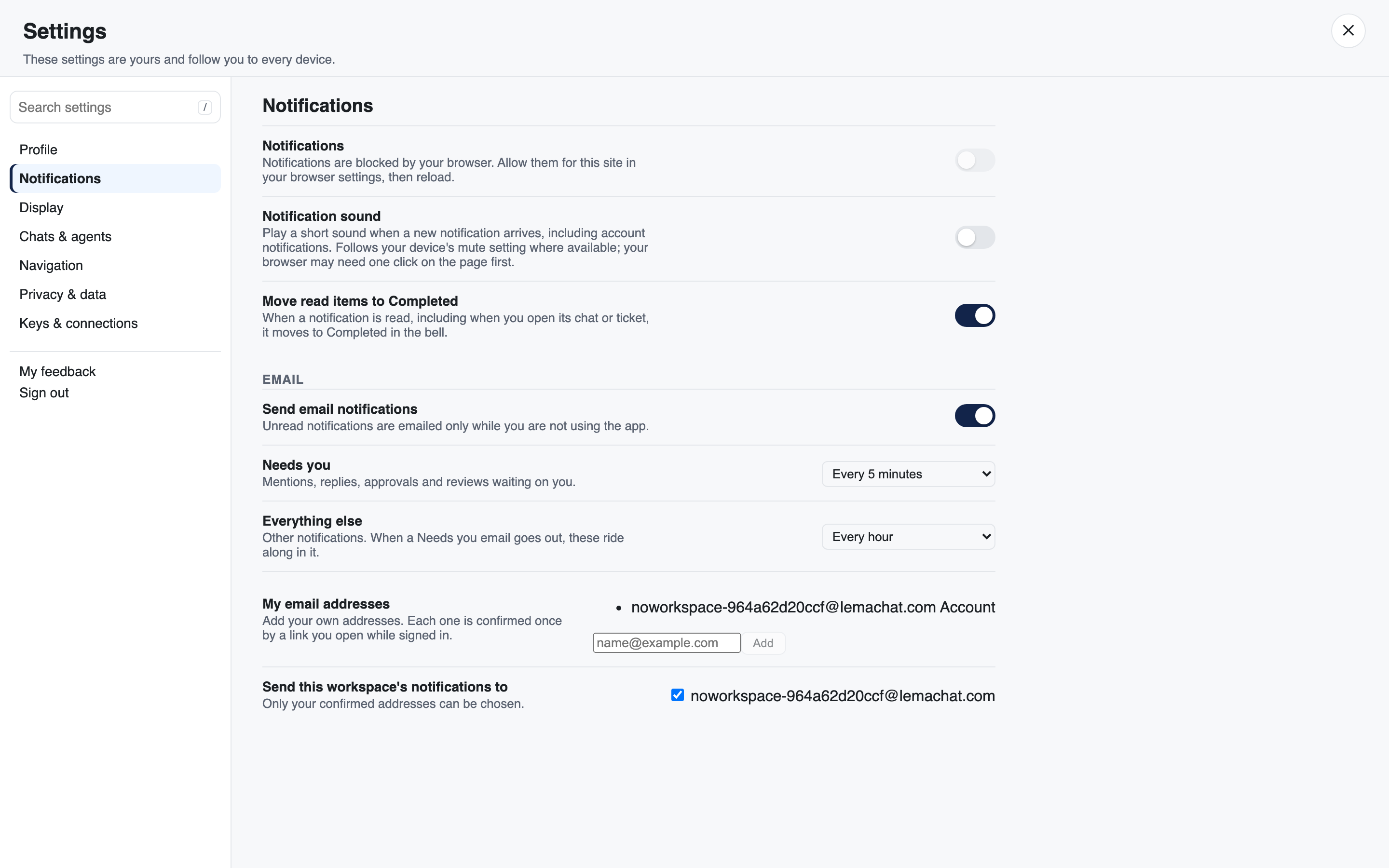
- Notifications: on by default. Turn it off to stop alerts on this browser or phone.
- Notification sound: a short sound when a new notification arrives. Off by default. Turning it on plays the sound once so you hear it. It follows your device's mute setting where it can, and your browser may need one click on the page before it can play.
- Move read items to Completed: a notification you read, or whose chat you open, moves to Completed in the bell.
Email
- Send email notifications: on by default. Unread notifications are emailed only while you are not using LEMA Chat.
- Needs you: how often to email mentions, replies, approvals and reviews waiting on you. Every 5 minutes unless you change it.
- Everything else: how often to email other notifications. Every hour unless you change it. When a Needs you email goes out, these ride along in it.
Both offer Immediately, every 5, 15 or 30 minutes, every 1, 2, 4 or 8 hours, End of day (17:00) or End of week (Fri 17:00), in your own time zone.
- My email addresses: your account email, plus up to ten more of your own. Each added address shows Pending until you open the confirmation link sent to it while signed in, then Confirmed. Resend confirmation and Remove are on each row.
- Send this workspace's notifications to: which of your confirmed addresses this workspace emails. Your account email unless you choose others.
Display
The top of Display shows a Preview: an agent reply and a message of yours that change as you change the settings below.
- Theme: Light, Dark or Device (follow your computer or phone, the default).
- Avatars: Pictures (the default) or Initials.
- Animate avatars: a subtle motion when you point at an avatar. It is off automatically if your device asks for reduced motion.
- Color-blind patterns: a per-person pattern so avatars differ by texture, not only colour.
- Timestamps: On hover shows a message's time while you point at or move to it (always on a touch screen), Always (the default) shows it on every message, Never hides it.
- Your messages: Left (the default) or Right, like a messenger app.
- Highlight: Tint (the default) gives your messages a background tint, Your color uses your avatar's colour, None shows no tint.
- Link markers: ↗ after links that leave the app and ✓ after links to trusted sites: None (the default), External, Trusted only or Both. The list of trusted and blocked sites is a workspace setting; see Workspace settings.
- Costs (people who can see costs): the $ cost on agent replies and the chat total.
- Diagram lines: how connector lines are drawn: Workspace default, Smooth, Straight or Right-angle. See Whiteboards & docs.
Chats & agents
- Thinking: how an agent's thinking shows. Show while thinking (the default) shows it as it streams, then folds it to the 💭 icon once the reply starts. Always expanded keeps it open, Collapsed shows only the 💭 icon, and Hidden shows no thinking at all. The 💭 button on a message still opens or closes that one message. See Thinking & tool use.
- Seen by: small avatars under a message show who has seen it. On by default.
- Related chats: a note in a chat when earlier conversations or Brain records cover the same subject. Off by default.
- Tools in embedded chats: a Tools button in a chat shown inside another page.
- Open documents in: Auto (an existing doc opens in View, one you just created opens in Edit), Edit or View.
Navigation
- Layout: Simple shows only Inbox, Topics and Brains in the left sidebar, with a More row for the rest, and starts the right panel closed. Full shows every section. Role default follows your role: people below Facilitator start in Simple, Facilitators and above in Full.
- Open one section at a time: opening one section of the sidebar closes the others. Choose Workspace default, On or Off.
- Interviews in the left navigation: Own Interviews section puts Interviews in their own section above Topics; In Topics keeps them in the Topics section. Workspace default follows the workspace setting.
- Show Communities: adds the Communities section to the left sidebar.
- Try the new layout: the new navigation rail, while it is being rolled out.
Privacy & data
Export my data: downloads a copy of your account data.
Erase my account…: permanently erases your personal data. Type
DELETEto confirm.Link sites: the sites you chose with Allow site or Block site when opening a link, under Allowed sites and Blocked sites. Allowed sites open without asking; blocked sites cannot be opened. Remove takes a site off its list. See Approvals and safety.
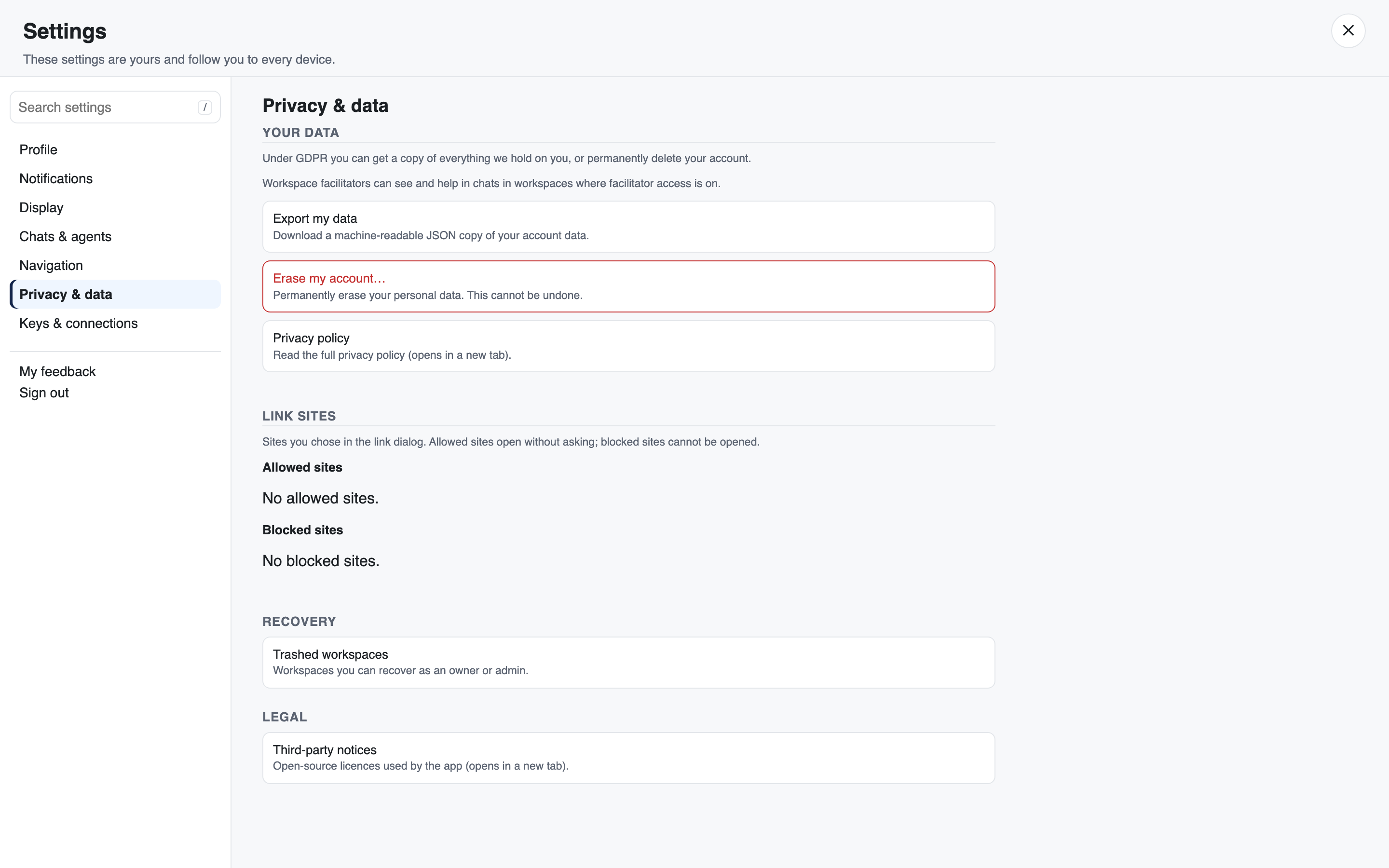
Privacy policy
Trashed workspaces: workspaces of yours that are in the Trash.
Third-party notices
Keys & connections
- MCP API keys: create keys for your own tools at the top, with your keys listed below. See API keys.
- Your keys and connections: every key and connection you own, in one list.
- Deleted keys and connections: your personal Trash. A key or personal connection you delete waits here, seen only by you, until it is deleted for good with its stored secret. See Trash and recovery.
Admin tools
Owners and Admins only.
- Tool calls in chat: each tool call starts expanded.
- Dispatch in chat: Off, Marker (a small marker on the reply) or Full row (the full routing row between messages).
- Performance strip: timings, tokens and cost after each reply.
My feedback (the feedback you have sent and the replies to it, see Support tickets) and Sign out sit under the sections.
Layout on each device
Some of the layout is remembered for you without a setting:
- whether the left sidebar, the workspace rail and the right panel are open or collapsed,
- how wide you dragged the left sidebar and the right panel.
These are kept per workspace and per kind of device: phone, tablet, desktop and wide desktop. A narrow layout you like on a tablet does not squeeze your desktop, and collapsing the right panel on your laptop does not change your phone.
Which sections of the sidebar and the right panel you left open is remembered per workspace, on every device.
To collapse or open a part of the screen:
- Left sidebar: the ‹ button in its header (Collapse sidebar), and › to bring it back. Drag its edge to resize; double-click the edge to reset.
- Workspace rail: the ‹ at its top (Collapse workspaces).
- Right panel: the panel button in the chat header, or the › tab on the panel's edge.