
Thinking & tool use
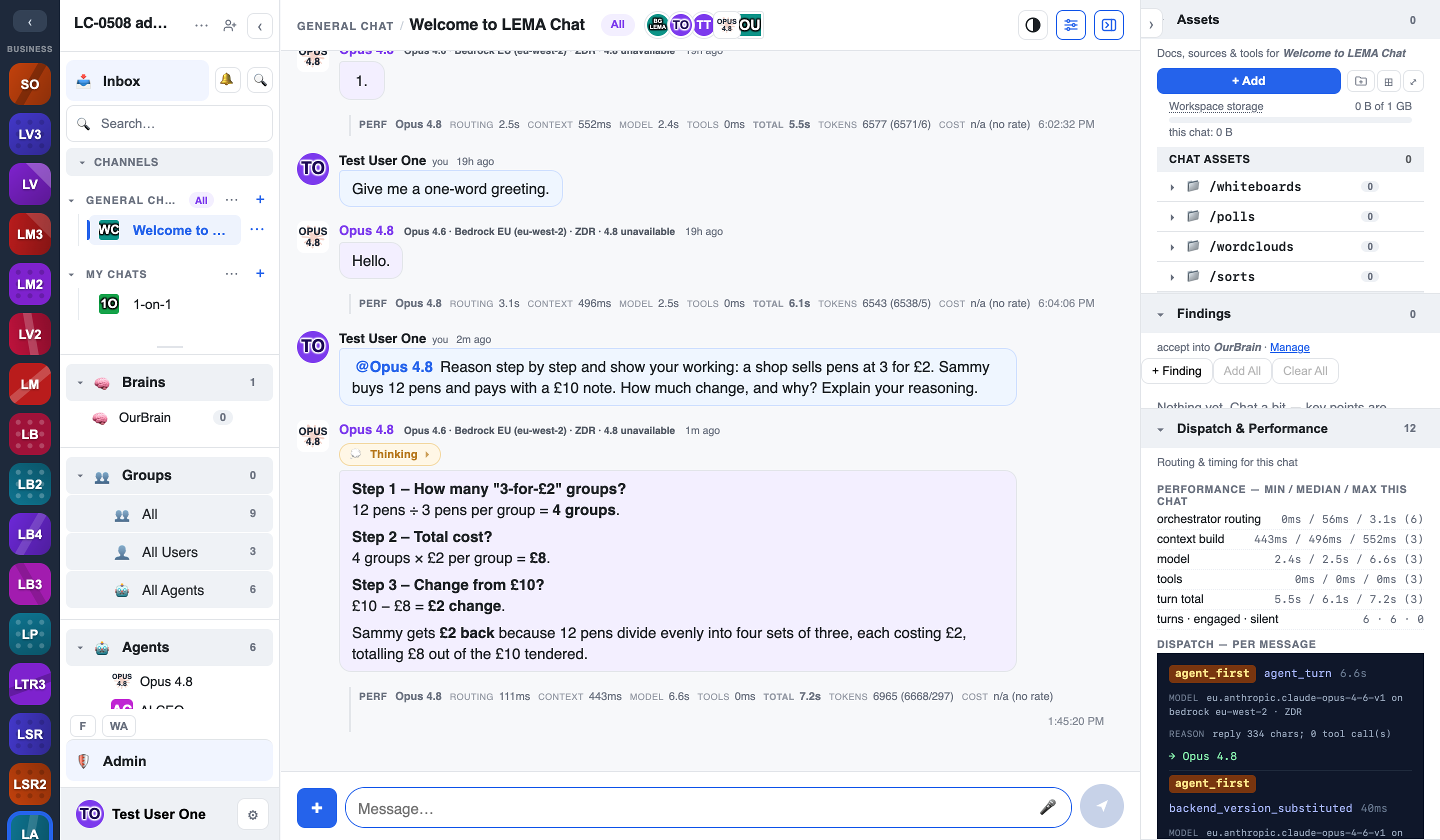
When an agent answers, you get more than the final text. You can see how it got there: the model's reasoning, and the steps it took along the way. It is the same idea as a colleague showing their working.
While the agent is working
As an agent composes a reply, its message shows a Thinking… chip with live progress: how long it has been going, how much it has written and how many tool steps it has taken. Tap the chip to watch the reasoning as it arrives.
The line under the chat says what the agent is doing in plain words, for example "AI CEO is reading a web page…" or "AI CEO is looking through documents…".
After the reply
When the reply lands, the thinking is kept with the message.
- Show or hide: click the 💭 button on an agent's message. It opens or closes the thinking for that message, and only for you.
- Kept: the thinking is stored with the message, so it is there after a reload and for anyone who reads the chat later.
- Choose how it shows: Thinking in Settings picks Show while thinking (the default: live, then folded to 💭 when the reply starts), Always expanded, Collapsed or Hidden.
Tool steps
Agents do not only think. They act: they read a web page, look something up in a Brain, file a ticket. Each action appears inside the thinking as a numbered tool call with a plain description of what it did, such as "reading a web page", "looking through documents" or "handing off to another agent".
Everyone in the chat sees each step, whether it worked, and how long it took.
A Brain lookup is a tool step too, so what an agent retrieved can be checked like any other action.
The detail behind a step
Workspace Admins and above can click a step to show its request and response:
- Request: what the agent sent.
- Result (or Error): what came back.
- Show more and Show less: a long result starts as a preview. Show more opens all of it.
- copy: copies the whole request or result, not only the part on screen.
Steps that wait for you
Some steps stop and ask before they run. The thinking then shows the step as Awaiting approval, and an approval card appears in the chat. See Approvals and safety checks.