
Signing in
You sign in to LEMA Chat with an account you already have, or with a link sent to your email. There is no separate password to create or remember.
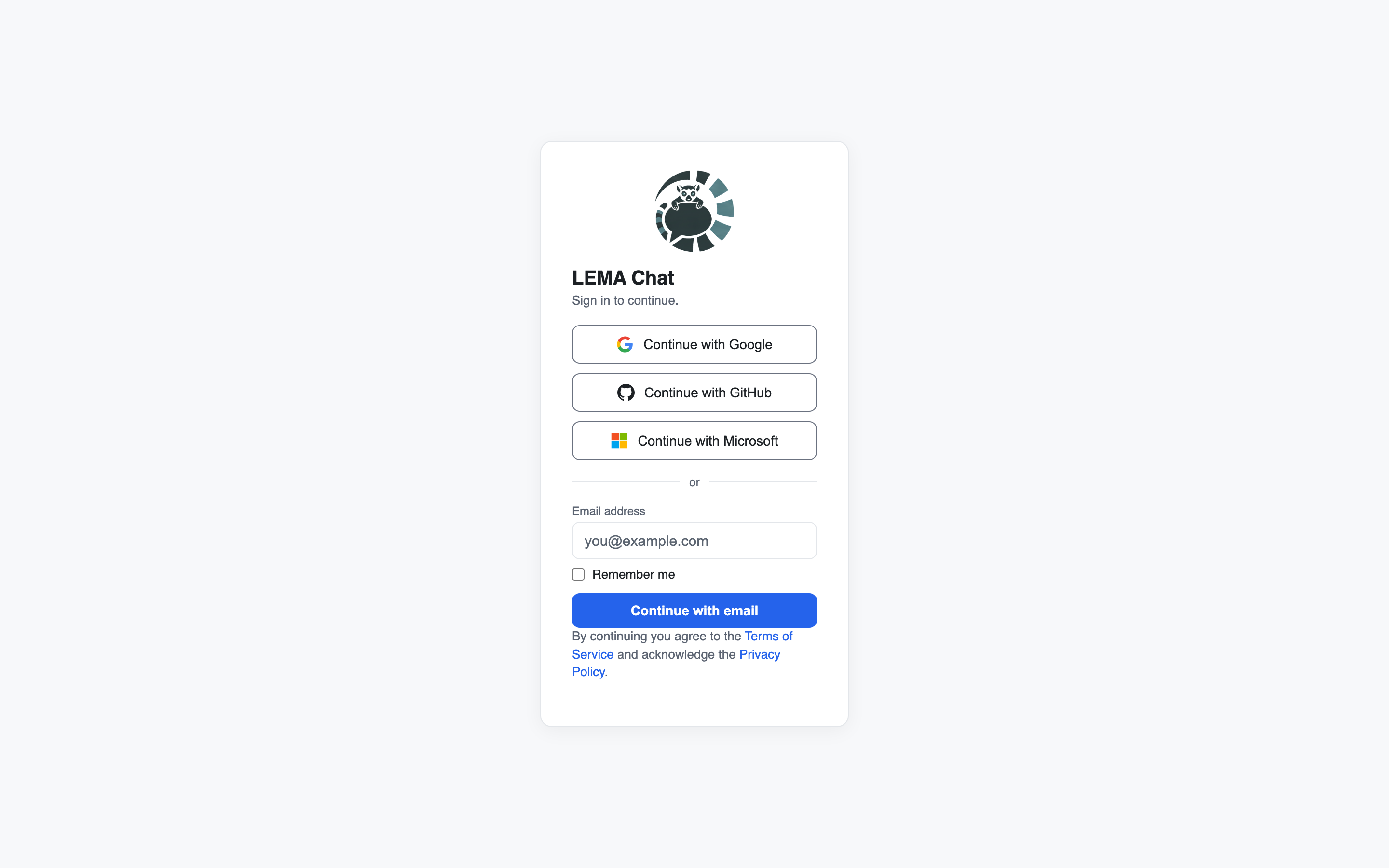
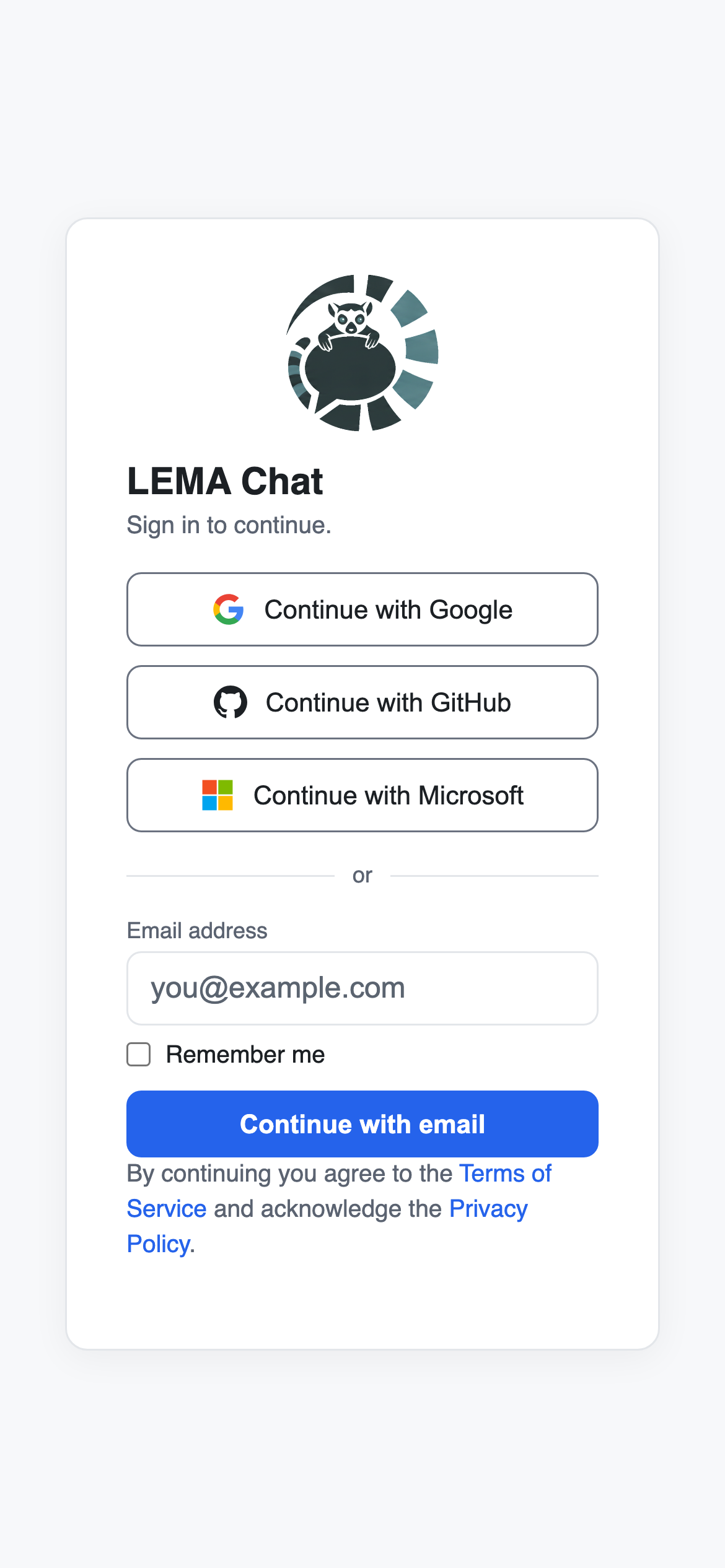
The sign-in screen
The screen shows the product's logo and name, then your choices:
- Continue with Google
- Continue with GitHub
- Continue with Microsoft
- or an Email address box with a Continue with email button.
Pick a provider and you are sent to it, then back once you approve. Your identity comes from that provider account.
Under the buttons, one line links to the Terms of Service and the Privacy Policy. Both open without signing in.
Signing in with an email link
- Type your address in Email address.
- Press Continue with email.
- The screen confirms where the link went: "We sent a sign-in link to" and your address.
- Open the email and follow the link. You are signed in.
If the email does not arrive:
- Check your spam folder.
- Press Resend link. The button counts down before it can be used again.
- Press Use a different email to go back and correct the address.
Asking for too many links in a short time shows "Too many requests" with the number of seconds to wait.
Remember me
Remember me sits under the email box. Tick it on a device that is yours, so you stay signed in for longer. Leave it unticked on a shared computer.
If you were invited
An invite link opens the same screen with a line naming the workspace: "You've been invited to join", then the workspace name. Sign in with the address the invite was sent to.
If signing in creates your account, it takes the name on the invite (unless your sign-in already gives a name), so you never join as just an email address.
After you sign in you see the invite itself: the workspace, the role you will join as, and Accept & join or Decline.
The invite is for a different address
If you sign in with another address, you see "This invite is for a different email address". The panel names both addresses and offers:
- Sign in with the invited address. This signs you out so you can sign in again with the right one.
- Notify the inviter: ask the person who invited you to send the invite to the address you are using. You can edit the message before it is sent.
- Business workspace or Personal workspace: start a workspace of your own instead.
If you are not in a workspace
Signing in with no invite shows "You're not in a workspace yet". From there:
- Ask your team for an invite: enter your team admin's email or your workspace's name, and an optional message. The request and your email go to that workspace's admins. For privacy, you are not told whether a workspace matched.
- Create a new workspace: start your own.
- Sign out, if you signed in with the wrong account.
An invite sent to your address appears here the next time you sign in.
A new workspace waits for approval
A workspace you create yourself is checked by a platform administrator before it can be used.
- Until it is approved, opening it shows the workspace's name and "is waiting for approval", with Check again, a button to open each of your other workspaces, and Sign out.
- While it waits, nobody can use AI, invite people or spend credits in it. You can still rename it or move it to the Trash.
- You get a notification and an email when it is approved. Then press Check again.
- If it is not approved, the screen says so, with the reason given.
- You can have one workspace waiting at a time. A waiting workspace you moved to the Trash does not count.
One sign-in for connected sites
Some sites that belong to your organisation, such as an onboarding site, send you to this same screen to sign in. Sign in as usual and you are returned to the site you came from.
When something goes wrong
- Your session expired: the sign-in screen says so. Sign in again and you are taken back to where you were.
- A link you opened needs sign-in: the screen says "Sign in to open this link" and takes you straight to it afterwards.
- Cannot reach the sign-in service: press Try again.
- This sign-in can't be used: the screen gives the reason. Press Sign out, then sign in with the account the address belongs to.
Signing out
Open Settings (your name or the ⚙ button at the bottom of the left sidebar) and choose Sign out. See Settings and your view.