
LEMA Chat on mobile
LEMA Chat works on a phone, in the browser and in the iPhone app. The same workspaces, chats, agents and widgets are there. The layout folds down to one column so the chat gets the whole screen.
Signing in
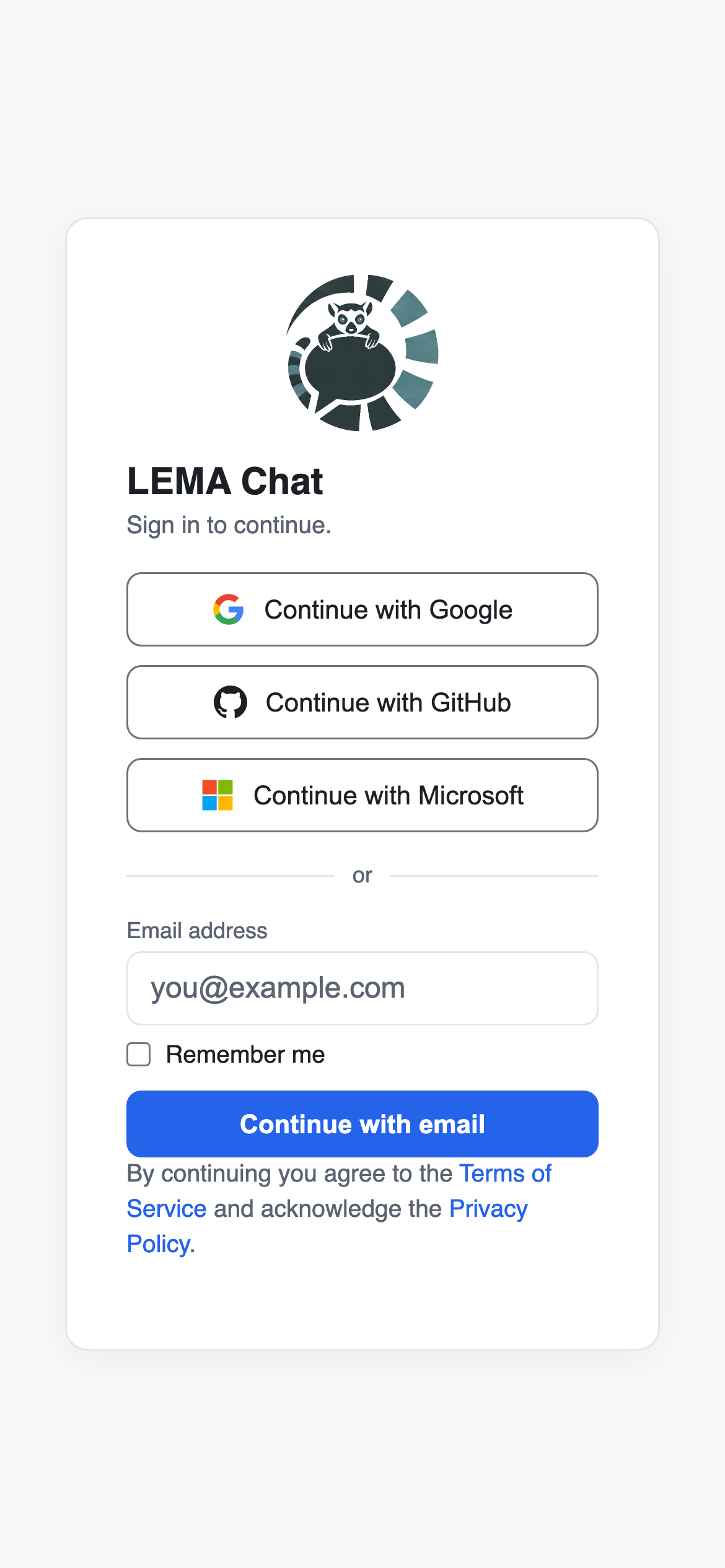
The sign-in screen is the same as on a computer: Continue with Google, Continue with GitHub, Continue with Microsoft, or your email and Send magic link. See Signing in.
The chat fills the screen
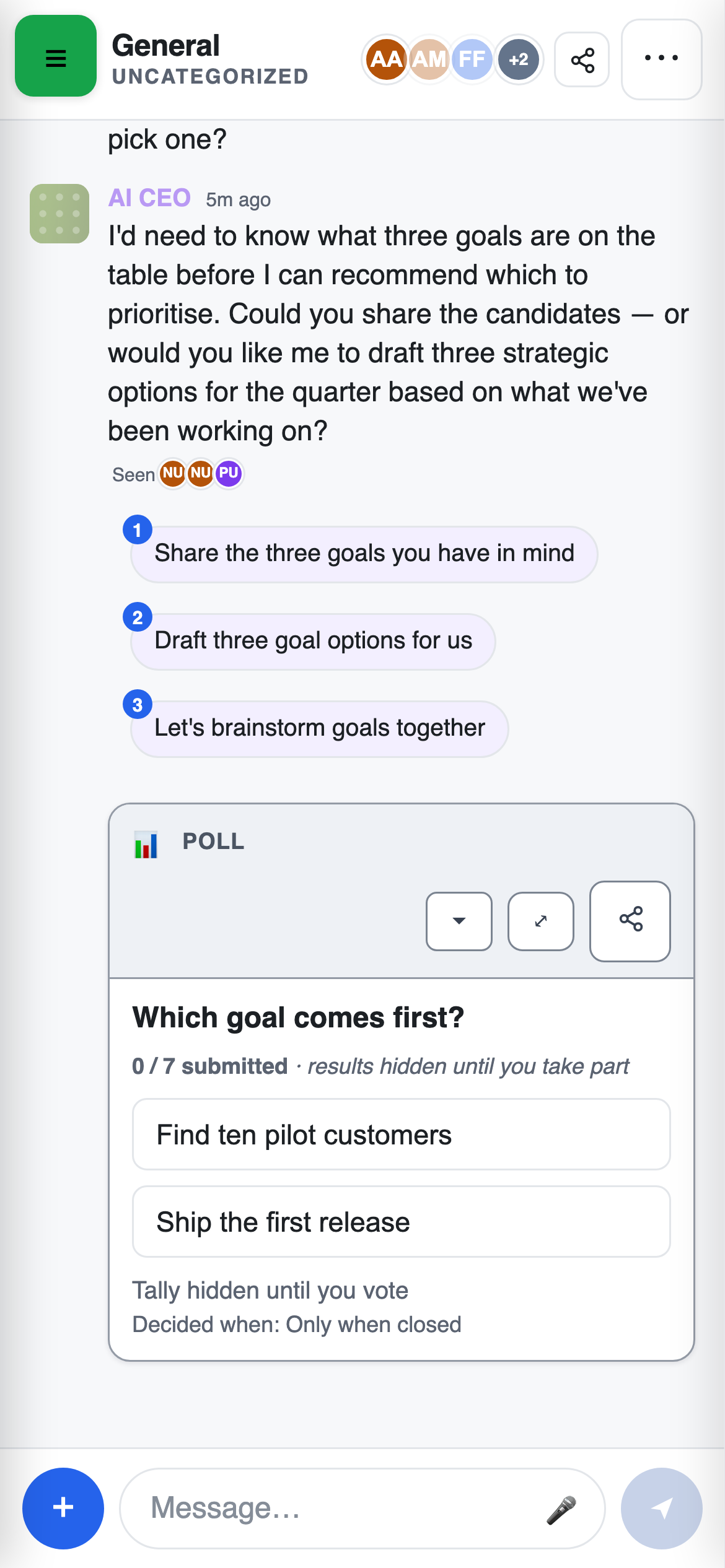
On a phone the chat takes the full width.
- ☰ (top-left) opens the navigation.
- The title shows the chat's name, with the channel or, in a direct message, the other person's name under it. Tap it for Chat details: the full name and everyone in the chat.
- ⋯ (More chat actions) holds the header actions that do not fit.
- The panel button opens the right panel (docs, sources and tools) as a drawer over the chat.
See The chat header and chat details.
Navigation
Tap ☰ to slide the navigation in from the left: your workspaces, then the same sections as on a computer. Tap a conversation and the drawer closes, so you are straight back in the chat. Tapping outside the drawer closes it too.
With no chat open you see "Select a chat to begin." and a Browse chats button that opens the navigation.
Messages
- Message actions: there is no hover on a phone. Tap a message to show its toolbar (react, reply, pin and the rest). Tap it again, or tap elsewhere, to hide the toolbar. One toolbar is open at a time.
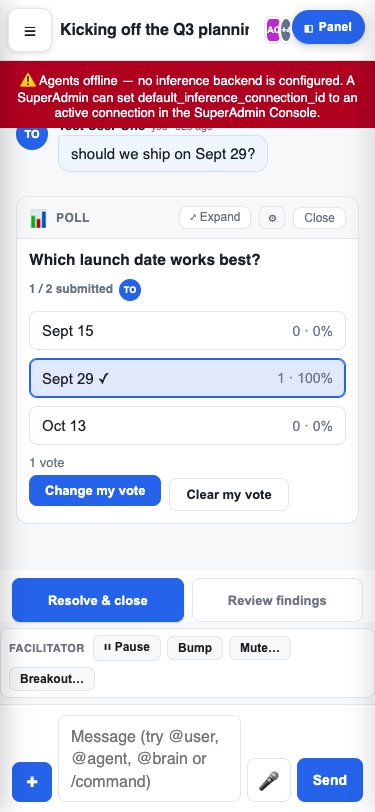
- Sending: your message appears at once, tagged "you", with "Sending…" beside it. When the server has it, the row becomes the message itself.
- If a message is refused, the row is removed and an error says why.
- The + menu: More leads to the widgets, with a Back row to return.
Picking up where you left off
Opening LEMA Chat again takes you back to the chat you last had open in that workspace. A link you opened, for example from a notification, takes you to its own chat instead.
When the connection drops
- While opening: if the server cannot be reached, the loading screen reads "Can't reach the server. Retrying…". It keeps trying by itself, with longer gaps between tries, and tries again at once when your phone is back online or you return to the app.
- In a chat: a chip reads "Reconnecting…" with how long you have been offline and when the next try is. Press Retry now to try straight away.
- Messages you sent while offline are delivered when the connection is back.
Notifications
The bell opens the same notifications panel as on a computer, over the navigation. See Search & notifications.
- iPhone app: the app asks for permission to send notifications the first time you sign in. Tapping a notification opens its chat. Alerts you have already read are cleared from Notification Center, and the number on the app icon is what is still waiting for you.
- If you said no: Settings shows "Notifications are turned off" and asks you to enable them for the app in iOS Settings, then reopen the app.
- In a phone browser: on an iPhone, add the site to your Home Screen first. The browser cannot show notifications until you do.
Interviews
An interview works on a phone by typing or by voice. In the iPhone app, voice stops if the app goes to the background. You are put back in the typed interview and can tap Speak to reconnect. See Taking an interview.
Settings
Settings is at the bottom of the navigation drawer. Your view settings are the same on your phone as everywhere else. The layout (which panels are open) is remembered separately for your phone. See Settings and your view.
Updates
- In a browser: "New version available." with a Refresh button.
- In the iPhone app: "An app update is available." with an Update button.
- A required update: the app shows "Update required" and an Update app button. Install the update to continue.